Remember the last time you saw a striking flyer or a beautifully designed photo? Chances are, it was created using printing in color. But what if you could achieve those same stunning results yourself, whether for professional projects or personal keepsakes? This guide explores everything you need to know, from the basics to advanced techniques, ensuring you get the most out of your printing in color experiences. You’ll gain valuable knowledge on choosing the right printer, understanding color models, and troubleshooting common issues. Get ready to elevate your visual communication!
Key Takeaways
- Learn the fundamentals of color models and how they impact printed output.
- Discover the different types of printers and which ones excel at color printing.
- Understand the factors that influence color accuracy and how to improve it.
- Gain tips for choosing the right paper to enhance your color prints.
- Explore advanced techniques like color calibration and profile management.
- Troubleshoot common color printing problems for optimal results.
The Basics of Printing in Color
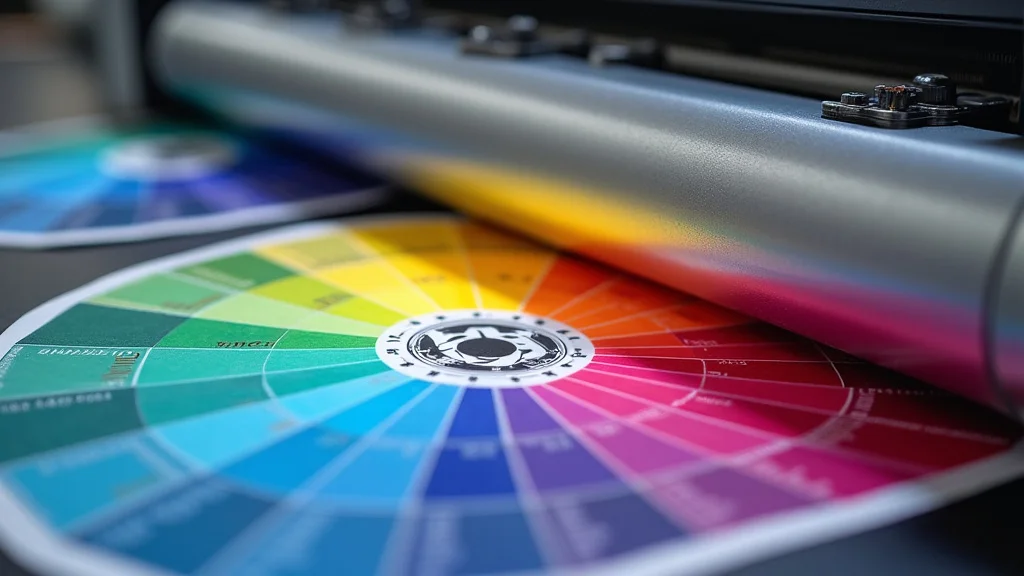
At its core, color printing is about reproducing a wide range of hues using a limited set of inks. The process involves mixing these inks in varying proportions to create the desired colors on the printed material. It’s more complex than simply pressing a button; several elements affect the final output, from the printer and ink to the paper and the software used.
Color Models: RGB vs. CMYK
Two primary color models are involved in printing in color: RGB and CMYK. RGB, which stands for Red, Green, and Blue, is an additive color model. This model is used for digital displays, where colors are created by adding light. When all three colors are combined at their maximum intensity, they produce white. Think of your computer screen, phone, or TV – they all use RGB.
CMYK, which represents Cyan, Magenta, Yellow, and Key (Black), is a subtractive color model used in printing. Instead of adding light, CMYK works by absorbing it. When all four colors are mixed at their maximum intensity, they ideally produce black (although a true black is often challenging to achieve and hence, a separate black ink is used). The CMYK model is the standard for commercial and home printing because it allows for a broad range of colors that can be printed on paper.
- RGB: Ideal for digital displays; adds light to create color.
- CMYK: Standard for printing; subtracts light to create color.
- Color Gamut Differences: RGB typically has a wider color gamut than CMYK.
- Conversion: Software often converts RGB to CMYK.
RGB color model is the foundation for visual representation on screens. It’s an additive process where colors originate from black, and light is mixed to produce the desired hues. Digital cameras capture images using RGB, and these are then displayed on devices that use the same model.
CMYK is the standard color model for printing. It uses four inks: cyan, magenta, yellow, and black. This subtractive process produces colors by absorbing light, with the inks layered to create a wide spectrum. Print shops rely on CMYK for brochures, flyers, and other printed materials.
RGB usually encompasses a more extensive array of colors compared to CMYK. This means that a wider selection of colors can be displayed on screens than can be reproduced by standard printers. However, high-end printers can get very close.
When you prepare to print a file, your software converts the colors from the RGB color model to the CMYK model that your printer can use. This conversion can sometimes lead to slight color shifts since not all RGB colors can be precisely matched in CMYK.
Printer Types for Color Printing
Several printer types excel at color printing, each with advantages and disadvantages depending on your needs. Choosing the right printer is vital to obtaining the quality and type of color output you expect. Consider the volume of printing, the quality requirements, and the budget when selecting a printer.
- Inkjet Printers: Versatile and affordable; ideal for home use.
- Laser Printers: Fast and efficient; suitable for high-volume printing.
- Photo Printers: Specialized for high-quality photo prints.
- Wide-Format Printers: Used for large-format prints, like posters and banners.
Inkjet printers are a popular choice for home and small business use. They work by spraying tiny droplets of ink onto the paper. They offer excellent color reproduction for photos and documents and generally are cost-effective.
Laser printers use a toner-based system, which fuses to the paper with heat. They’re great for high-volume printing, such as office documents and reports, and they produce sharp text and graphics. These are typically more costly upfront.
Photo printers, often a type of inkjet printer, are specifically designed to produce the best results for photographic images. They often have more than four ink cartridges, including light cyan and light magenta, to enhance color gradients and produce more realistic skin tones.
These printers are built for oversized prints, allowing for larger output such as posters and banners. They use inkjet technology and offer high-resolution capabilities, which ensures detailed and visually stunning prints. These are mostly found in print shops and commercial settings.
Choosing the Right Ink and Paper for Printing in Color
Once you have selected a printer, the type of ink and paper you use becomes vital to quality. Both contribute significantly to the final print’s appearance, color accuracy, and durability. Selecting the correct materials will ensure the best possible results.
Ink Types and Their Characteristics
The type of ink used significantly impacts color quality, fade resistance, and print longevity. There are two primary types of ink used in color printing: dye-based and pigment-based inks.
- Dye-Based Inks: Provide vibrant colors; good for photos.
- Pigment-Based Inks: Offer fade resistance; suitable for documents and art prints.
- Ink Cartridge Systems: Consider the number of cartridges and cost per print.
- Ink Compatibility: Ensure ink is compatible with your printer.
Dye-based inks are known for their vibrant colors and are excellent for printing photos. They consist of dyes dissolved in a liquid carrier and produce bright, rich colors. However, dye-based inks are prone to fading and are susceptible to water damage.
Pigment-based inks use tiny solid particles suspended in a liquid carrier. They’re superior in fade resistance and are resistant to water damage, making them a good choice for documents and artwork that need to last a long time.
The cartridge system determines how ink is supplied to the printer. Printers with more ink cartridges can produce a wider range of colors and finer details. Consider the long-term cost of replacing cartridges.
It’s vital to use ink cartridges designed for your specific printer model. Using incorrect ink can lead to poor print quality, clogging, or even damage to the printer.
Paper Types and Their Impact on Color
The choice of paper significantly influences how colors appear in your prints. Different paper types affect ink absorption, color saturation, and the final look and feel of your printed work. The appropriate choice is vital.
- Glossy Paper: Enhances color vibrancy; ideal for photos.
- Matte Paper: Provides a softer appearance; suitable for text and documents.
- Photo Paper: Designed for high-quality photo prints; available in various finishes.
- Specialty Paper: Includes art paper, canvas, and more.
Glossy paper has a reflective surface, which enhances the colors’ vibrancy and creates sharp, detailed images. It is usually the top choice for printing photographs.
Matte paper has a non-reflective surface that produces softer colors and reduces glare. It’s a great choice for text documents, brochures, and images where a more subtle look is desired.
Photo paper is specially coated to absorb ink and produce high-quality photographs with vivid colors and fine details. It’s available in various finishes, including glossy, semi-gloss, and matte.
Various specialty papers cater to particular printing needs. These include art paper, which provides a textured surface for artwork, and canvas for creating prints that resemble paintings. The variety allows for unique project types.
Color Accuracy and Calibration in Printing in Color
Achieving accurate color in your prints involves more than choosing the right printer and materials; it requires attention to color calibration and management. These steps ensure that the colors you see on your screen match the colors printed. Poor color management results in prints that do not match the colors you expect.
Color Calibration and Its Importance
Color calibration ensures that your display accurately represents colors. This procedure corrects inconsistencies between your display and the printer, reducing color shifts. It is a fundamental step in achieving color accuracy.
- Why Calibrate? To ensure that what you see on your screen matches the print output.
- Display Calibration Tools: Colorimeters and spectrophotometers.
- Calibration Frequency: Recalibrate regularly for optimal accuracy.
- Software Calibration: Software like Adobe Photoshop can help.
Calibrating your display makes sure the colors you work with visually match the colors your printer produces. This reduces the risk of incorrect color reproduction in your final prints.
Use devices such as colorimeters or spectrophotometers. These tools measure the colors displayed on your screen and create a color profile that can be used to correct any inaccuracies.
Displays drift over time. Recalibrate your display regularly (every month or two) to maintain color accuracy. Regular calibration reduces unexpected color differences.
Software tools can also help. Applications like Adobe Photoshop or dedicated calibration software guide you through the calibration process.
Color Profiles and Management
Color profiles describe how a color device (like your monitor or printer) reproduces colors. Color management is the system that uses these profiles to ensure colors are consistent across different devices. Proper color management maintains color accuracy during the printing process.
- What Are Color Profiles? Device-specific color descriptions.
- ICC Profiles: Industry-standard color profiles.
- Print Settings: Use the correct color profiles in your print settings.
- Color Management Software: Adobe Photoshop, GIMP.
A color profile is a digital file that contains information about how a device produces colors. It is specific to the display, printer, and the media being used. The information is used to make sure colors are rendered correctly.
ICC profiles (International Color Consortium) are the industry standard and describe how a device handles color. Your printer and paper manufacturer often provide these profiles to ensure accurate color reproduction.
Configure your printer settings to use the correct color profile. This involves choosing the right profile for your printer, paper, and ink combination. Print settings ensure color accuracy.
Use color management software, such as Adobe Photoshop or GIMP, to control and manage your color profiles and ensure consistent colors throughout the design and printing process.
Troubleshooting Common Printing in Color Problems
Even with careful planning and preparation, issues can arise. Knowing how to troubleshoot common problems will help you address these issues efficiently and quickly, ensuring your printing in color projects meet your expectations.
Color Mismatches and Adjustments
Color mismatches happen when the colors on your print don’t match what you see on your screen. Several factors can cause this, and here are methods to identify and fix them.
- Monitor Calibration: Make sure your display is calibrated.
- Color Profile Issues: Check and adjust color profiles.
- Color Conversion: RGB to CMYK conversion.
- Printer Settings: Verify the printer settings.
Start by calibrating your monitor. An uncalibrated monitor can show colors incorrectly. Calibrating ensures colors on the screen accurately reflect the colors in your prints. Recalibrate your display using a colorimeter or spectrophotometer for optimal results.
Check your color profiles. Using the wrong color profile for your printer and paper can lead to color discrepancies. Ensure that you have the right profile selected in your printer settings. Download and install the correct profiles from the paper manufacturer’s website.
Remember that the color spaces are different. Colors visible in RGB may not be accurately reproduced in CMYK, leading to color changes. Preview your designs in CMYK mode to anticipate these changes. Adjust the colors in your design before printing.
Verify printer settings. Incorrect printer settings (e.g., wrong paper type) can cause color mismatches. Select the correct paper type and print quality settings in your printer preferences. Consult your printer’s manual for recommended settings.
Print Quality Issues and Solutions
Poor print quality is another frequent problem. The results may include banding, blurring, or incorrect color rendering. Several steps can be taken to diagnose and resolve these print quality issues.
- Banding: Caused by clogged print heads or uneven ink distribution.
- Blurring: May indicate a low resolution.
- Ink Problems: Empty cartridges or incorrect ink levels.
- Paper Issues: Paper type, weight, and compatibility.
Banding appears as streaks or lines on your print. It is often caused by clogged print heads. Run the printer’s cleaning cycle to clear the heads. Use high-quality paper and avoid printing in draft mode.
Blurring can be caused by low-resolution images or improper print settings. Increase the resolution of your image before printing (300 DPI is generally recommended). Select the highest print quality setting to print detailed images.
Empty or low ink cartridges cause color errors or missing colors. Always check your ink levels before printing. Replace empty cartridges. Use the printer’s utility software to align the print heads and nozzles.
Using the wrong paper can result in smudging, poor ink absorption, and color problems. Use the paper type recommended by your printer’s manufacturer. Make sure the paper is compatible with your printer model. Select the correct paper setting in your printer settings.
Practical Examples and Scenarios of Printing in Color
Applying the concepts discussed can lead to exceptional results. Here are some real-life scenarios and examples illustrating the effective use of printing in color.
Example 1: High-Quality Photo Prints: A photographer needs to print a series of photographs for a client. They use a photo printer, high-quality photo paper, and calibrate their monitor to match the printer’s output, achieving prints that exactly mirror the digital versions.
Example 2: Marketing Materials: A small business creates flyers. They design their materials using CMYK color mode. After the design is finalized, they send them to a professional printer with the correct color profile settings, resulting in accurately colored and professional-looking materials.
Example 3: Home Projects: A person is preparing a family album with prints. They use an inkjet printer and select various papers to print different images, such as matte for text-heavy pages and glossy for photographs. They ensure proper printer and color profile settings to achieve vibrant and accurate results.
- A graphic designer creates a marketing brochure for a local business.
- A student prepares a poster presentation for a science fair.
The designer first designs the brochure in Adobe InDesign, ensuring they use CMYK color mode and incorporating the correct color profiles for the printer and paper. They test print a proof copy and make the necessary color adjustments before sending the final file to the print shop.
The student creates their poster using high-resolution images and clear, readable text, printing the poster on glossy paper using an inkjet printer with dye-based inks to ensure vibrant colors and high detail. They calibrate their monitor before starting.
Statistic: The global digital printing market size was valued at $28.31 billion in 2023, and is projected to reach $47.36 billion by 2030, growing at a CAGR of 7.63% from 2023 to 2030 (Source: Verified Market Research).
Common Myths Debunked
Myth 1: Any printer can print accurate colors.
Reality: Not all printers are created equal. High-quality color accuracy requires specific printer models, proper calibration, and color management techniques. Cheaper printers may produce prints, but the quality of color reproduction will be noticeably poorer.
Myth 2: More ink cartridges always mean better color.
Reality: While more cartridges can offer a broader range of colors, quality also depends on ink type, printer technology, and color profiles. A printer with six inks may outperform a printer with twelve inks, if it incorporates better printing techniques and color profiling.
Myth 3: Printing in color is always expensive.
Reality: The cost of printing in color varies depending on the printer, ink, and paper you use. While initial setup costs may be higher, many cost-effective printers offer good color quality. Careful material selection and proper print settings can reduce printing expenses.
Myth 4: You cannot fix poor color prints.
Reality: Many issues can be resolved. Addressing problems like color mismatches and banding. Color calibration, profile management, and correcting printer settings can often drastically improve the quality of your prints. Often, you can achieve better results with these steps.
Myth 5: All paper is the same for printing.
Reality: The paper you use has a significant impact on your color prints. Paper type, finish, and weight affect ink absorption, color vibrancy, and overall print quality. Choosing the right paper, like glossy paper for photos and matte for documents, enhances the final product.
Frequently Asked Questions
Question: What is the difference between dye-based and pigment-based inks?
Answer: Dye-based inks offer vibrant colors but are susceptible to fading and water damage. Pigment-based inks are fade-resistant and water-resistant, making them ideal for documents and artwork.
Question: How often should I calibrate my monitor?
Answer: Calibrate your monitor every month or two to maintain accurate color representation. Display properties change over time, so regular calibration is important. This ensures prints match what you see.
Question: Can I use any type of paper in my inkjet printer?
Answer: No, not all paper types are suitable for all inkjet printers. Use paper designed for inkjet printers to ensure proper ink absorption and avoid smudging.
Question: How do I choose the correct color profile for my printer?
Answer: Use the ICC profiles supplied by the paper or printer manufacturer. These profiles are designed for specific paper and ink combinations. You will find them on the manufacturer’s website.
Question: What should I do if my prints have color banding?
Answer: Run the printer’s cleaning cycle to clear the print heads. If the problem persists, try using a different paper or adjusting the print settings, like the print quality or resolution. In case of issues, always follow printer troubleshooting steps.
Final Thoughts
Mastering printing in color opens a world of creative possibilities. From capturing stunning photographs to producing eye-catching marketing materials, the ability to accurately reproduce colors is key. By understanding the fundamentals of color models, the differences between printer types, and the importance of calibration, you’ve equipped yourself with the necessary knowledge to achieve impressive results. Remember that the right ink and paper choices, coupled with proper color management, play crucial roles in ensuring your prints match your expectations. With practice and attention to detail, you can consistently produce vibrant, high-quality prints. So, begin exploring and experimenting with various techniques. Start creating today!