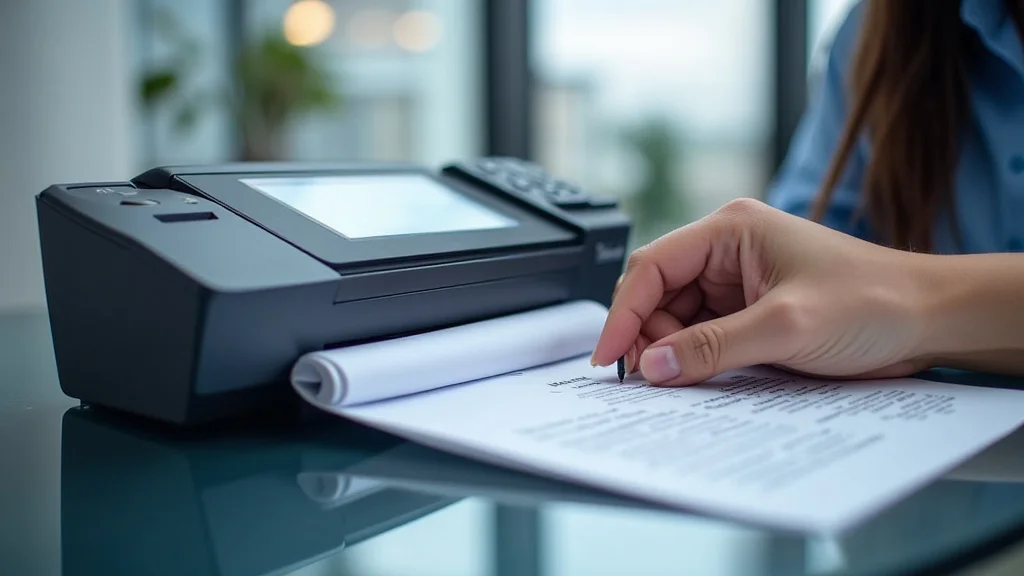
Remember that time your printer decided to jam right before a crucial presentation? Stressful, right? Or perhaps you’ve struggled with faded copies or unclear documents? This guide will help you overcome these challenges and achieve optimal results when printing xerox copies. We’ll explore everything from choosing the right paper to understanding the nuances of toner and its effect on your prints. By reading this guide, you will gain essential knowledge and practical tips to ensure you can efficiently achieve perfect prints, every time. This will give you the confidence to manage any printing task while saving time and money, and making your experience far easier and more efficient.
Key Takeaways
- Learn about the fundamentals of xerographic technology and how it affects the quality of your prints.
- Discover practical tips for selecting the right paper type and weight to achieve optimal results.
- Explore the importance of toner quality and how it impacts the clarity and durability of your copies.
- Understand common issues with printing xerox and learn how to troubleshoot them effectively.
- Gain valuable insights into the maintenance and care of your xerox machines to prolong their life.
- Master strategies for optimizing print settings and maximizing efficiency.
The Essence of Printing Xerox: How It Works
The core of printing xerox involves a process called xerography, which is essentially ‘dry writing.’ It uses static electricity to transfer an image onto paper. This process is complex, involving several steps, but it’s important to grasp the basics to comprehend how to troubleshoot and optimize your printing results. From the first laser scan to the final fusing of toner, each stage plays a vital part in the outcome. Knowing how each part interacts helps improve your understanding of how to maintain and troubleshoot your machines.
The Xerographic Process Explained
The xerographic process begins with a photoreceptor drum or belt, usually made of a photosensitive material. This drum is charged with static electricity, creating a uniform charge across its surface. Next, a laser or LED unit scans the image or text that’s to be copied onto the drum. Where the light strikes, the charge is discharged. This leaves a pattern of charged and uncharged areas that correspond to the image. The next step involves applying toner, which is a fine powder containing pigments. The toner particles are negatively charged and are attracted to the positively charged areas of the drum. This ensures the toner sticks specifically where the image should be, such as the ink on your document. The paper then comes into contact with the drum, and the toner is transferred to the paper with the assistance of an electrostatic charge and pressure. Finally, heat and pressure fuse the toner onto the paper, creating a durable and permanent image. This is referred to as the fusing stage.
- Charging: The photoreceptor drum receives a uniform electrostatic charge, preparing it for image creation.
- Exposure: A light source (laser or LED) selectively discharges areas on the drum, creating the image pattern.
- Development: Toner particles are attracted to the charged areas of the drum, forming a visible image.
- Transfer: The toner image is transferred from the drum to the paper using an electrostatic charge.
- Fusing: Heat and pressure fuse the toner onto the paper, making the image permanent.
Xerography is a remarkable invention, and it has evolved significantly since its initial creation. From the first crude prototypes to the advanced machines of today, the basic principles remain. The ability to copy documents quickly and efficiently has transformed offices, schools, and homes worldwide. Each advancement in this field has made it more cost-effective and dependable.
The Role of Toner and its Impact
Toner is a critical element in the xerographic process; its quality directly influences the print’s quality, durability, and cost-effectiveness. Toner is a fine powder composed of pigment, polymers, and other additives. The pigment provides color, and the polymers act as a binder to attach the pigment to the paper, while the additives ensure the toner flows smoothly, resists moisture, and prevents premature wear of the printing machine. Higher quality toner often results in sharper text, more vibrant colors, and reduced streaking or fading. Selecting the correct toner type for your printer ensures optimal printing results. The wrong toner can lead to poor prints, which may require you to reprint the documents.
- Pigment Quality: High-quality pigments produce vibrant and accurate colors, improving the overall visual appeal.
- Particle Size: Smaller toner particles lead to finer details and sharper images, increasing clarity.
- Durability: Toner formulation impacts print longevity. High-quality toner is less prone to fading.
- Cost: Although initial costs might be higher, high-quality toner can reduce long-term printing expenses by reducing print failures and improving machine life.
The formulation of the toner is very important. Toner formulations vary by manufacturer and even across different models from the same brand. Some toners are designed for specific paper types or printing applications, and this variability allows for a wide array of options to fit your needs.
Paper Selection for Optimal Printing Xerox Results
Choosing the right paper is important. Different papers work better with xerographic printers, impacting the final output. The weight, finish, and type of paper influence print clarity, and the machine’s overall efficiency. Selecting a paper type with the correct weight is important to avoid jams and to achieve a professional feel. The finish of the paper impacts how the toner is absorbed and how the colors appear on the page. Choosing the wrong paper can lead to blurred text, faded colors, and the machine malfunctioning. It’s often worth experimenting with different paper types to find what works best for your specific needs, but also to have backups on hand.
- Paper Weight: Heavier paper tends to offer better print quality and durability, which also prevents bleed-through.
- Paper Finish: Glossy paper can produce vibrant prints, while matte paper is more suited to text-heavy documents.
- Paper Type: Standard copy paper is suitable for everyday use. Specialty papers are necessary for documents that demand high quality.
- Paper Size: Ensure your paper size matches your printing requirements to avoid cutting or resizing issues.
Experimenting with different paper types is a great way to find the one best suited to your needs. Different paper types respond differently to toner and heat, so it’s essential to be aware of how each reacts.
Printing Xerox Troubleshooting: Common Issues and Solutions
Even with advanced technology, printers are subject to issues. Understanding common problems can help you fix them and keep your machine running. This allows you to resolve any errors that come your way, saving time and money. By knowing the potential causes and solutions to these problems, you can reduce downtime and achieve smooth and reliable results.
Paper Jams and How to Resolve Them
Paper jams are among the most frustrating issues with printing xerox. They interrupt workflow, wasting time and potentially damaging the printer. Identifying the type and location of the jam is the first step toward a solution. The type of jam could indicate the cause and what to do. Addressing the underlying problem is important to prevent reoccurrence. Knowing how to resolve them allows you to be prepared when they occur.
- Identify the Jam: Check the printer’s display or error messages to pinpoint the jam’s location.
- Open the Printer: Follow the manufacturer’s instructions to access the paper path safely.
- Remove the Paper: Carefully pull out any visible paper, being cautious not to tear it.
- Check for Debris: Remove any small paper scraps or foreign objects that may be causing the jam.
- Reload Paper: Ensure the paper tray is loaded correctly with the appropriate paper type and size.
Paper jams are very frustrating but often preventable. Regular maintenance can help reduce the frequency of paper jams.
Print Quality Problems and Remedies
Print quality issues, like streaks, faded text, or inconsistent color, can be frustrating and counterproductive. Resolving these issues involves a systematic approach, from checking the printer settings to the machine itself. A comprehensive approach helps diagnose the problem and determine the best solution to improve print quality. This includes understanding the potential causes, and how to fix them, from toner levels to printer settings.
- Streaks: Inspect the toner cartridge for damage or depletion. Clean the printer’s drum or photoreceptor.
- Faded Text: Replace the toner cartridge. Check the paper type, as it may not be compatible.
- Inconsistent Color: Calibrate the printer and its color settings. Check and adjust the toner levels.
- Smudging: Make sure the paper is dry before printing, and try adjusting the fusing temperature.
Print quality issues can often be fixed with simple steps. Understanding the causes and solutions helps ensure that prints always meet the desired standard. Remember, routine cleaning and maintenance can prevent these issues.
Connectivity and Driver Problems
Connectivity issues and driver problems can disrupt your workflow and are a common source of frustration. Properly diagnosing the underlying problem is essential for getting the printer working correctly again. This involves verifying the connections, confirming the drivers are up to date, and configuring the printing device. When dealing with these issues, you will save time and improve productivity.
- Verify Connections: Make sure the printer is connected correctly to the network and/or computer.
- Update Drivers: Install the latest drivers from the manufacturer’s website.
- Check Network Settings: Make sure the printer has a proper IP address and is visible on the network.
- Restart Devices: Restart the printer and your computer to resolve any temporary software glitches.
Connectivity and driver problems are common. If you know the troubleshooting steps, this makes them easy to resolve, allowing you to get back to printing. Always make sure to have the latest drivers from the manufacturer.
Printing Xerox Machine Maintenance
Proper maintenance is important to the overall health and functionality of your machine, and it helps extend the lifespan. Regular maintenance avoids costly repairs, improves print quality, and maximizes efficiency. Maintenance requires attention to detail, from cleaning the machine to replacing worn parts. By following these maintenance guidelines, you can make sure your machine continues to print effectively.
Cleaning and Care Tips
Routine cleaning is essential to prevent print defects and to keep your machine in top shape. Cleaning the machine ensures that there is no dust or debris. Regular cleaning helps extend the lifespan and performance of the machine. Implement a comprehensive cleaning schedule that addresses all critical parts, including the drum and toner cartridges.
- Clean the Exterior: Wipe down the machine with a damp cloth to remove any dust or debris.
- Clean the Interior: Use a lint-free cloth or a printer vacuum to remove toner spills.
- Clean the Drum: Consult the user manual for how to clean the drum safely.
- Clean the Fuser Unit: Be cautious when cleaning the fuser unit, as it can be very hot.
Regular cleaning is a simple act that has major benefits. It will make sure your machine provides high-quality prints for years to come. Clean machines are more efficient and reduce the chances of encountering frustrating printing problems.
Toner Cartridge Management
Managing toner cartridges efficiently is important for consistent print quality and cost-effectiveness. The toner levels can impact how the prints look, which is important for print quality. Regular inspection, timely replacement, and proper storage of the cartridges are important for optimal performance and print outcomes. Toner management also includes understanding how the machine uses toner and implementing strategies to reduce waste.
- Monitor Toner Levels: Keep an eye on the toner levels displayed by the machine.
- Replace Cartridges on Time: Avoid running out of toner by replacing cartridges when prompted.
- Store Cartridges Properly: Store new cartridges in a cool, dark, and dry place.
- Recycle Used Cartridges: Follow your local recycling guidelines to dispose of used cartridges.
Effective toner management ensures high-quality prints and saves money. Following these tips helps you maximize toner use and minimizes waste, improving efficiency and cost-effectiveness.
Routine Maintenance Schedule
Establishing a routine maintenance schedule is critical for ensuring the reliability and lifespan of your machine. Regular maintenance is important to catch problems early, which helps keep the machine performing at its peak. The routine involves a combination of tasks, including cleaning, part replacement, and inspection. By adopting a well-defined schedule, you ensure your machine is in good working order.
- Daily Tasks: Ensure the machine is turned off when not in use.
- Weekly Tasks: Clean the exterior and wipe down the paper feed components.
- Monthly Tasks: Perform a deep cleaning of the interior, including the drum unit.
- Annual Tasks: Have the machine serviced by a professional for parts checks and replacements.
The right schedule keeps your machine running smoothly. Sticking to this routine helps prevent unexpected breakdowns and keeps the machine printing at its best. Taking care of your printer guarantees high-quality prints.
Optimizing Print Settings for Quality and Efficiency
Understanding the printer’s settings enables you to improve print quality and efficiency. Adjusting settings such as resolution, color mode, and paper handling helps you get the best possible output from your machine. Understanding how each setting impacts print quality lets you tailor your prints to your needs. Making the right choices enables you to minimize waste and ensure your print jobs run quickly.
Resolution and Print Quality Adjustments
Resolution affects the quality of your output. Resolution refers to the number of dots per inch (dpi) a machine can print. Higher resolutions often result in sharper, more detailed prints, while lower resolutions are fine for simpler documents. Choosing the right resolution for each print job is a balance between quality and speed. Adjusting the print quality lets you fine-tune the output.
- Select the Right Resolution: Choose a high resolution (600 dpi or higher) for photographs and graphics.
- Adjust Print Mode: Select the draft mode for quick, low-quality prints, and the best quality mode for the finest detail.
- Control Color Settings: Adjust the color mode (grayscale or color) and calibrate the colors if necessary.
- Use Proper Paper: Choose paper designed for high-resolution printing xerox, as it improves detail and clarity.
Knowing how to adjust resolution and print quality will improve the overall results. By carefully adjusting these settings, you can strike the perfect balance between quality and efficiency. You can save on resources by using draft mode.
Choosing the Right Print Mode
The right print mode impacts the quality and speed of your prints. There are a variety of modes available, each tailored for different print needs. Standard print mode is good for most everyday documents, while draft mode will save toner and print faster. Choosing the correct print mode can affect both how the final product looks and how long it takes to print. By adjusting print mode based on the project you are working on, you can make sure that your machine works efficiently.
- Standard Mode: Best for general documents where quality is important.
- Draft Mode: Good for internal documents where speed and toner use are priorities.
- Photo Mode: Used for printing images, which provides the best possible color and detail.
- Toner Saver Mode: Minimizes toner use by making text and images less dense.
Choosing the correct print mode helps to get the most from your printer. Choosing the right mode lets you prioritize speed, quality, and toner conservation. This approach helps improve the efficiency and print outcomes of all types of documents.
Paper and Duplexing Settings
Proper paper handling and duplexing settings affect print quality, as well as productivity and paper use. These settings have an impact on the layout, and how the machine prints on both sides of the paper. This allows you to print on both sides, which saves paper. These adjustments influence the way the machine handles paper and, as a result, the results. Understanding how these settings work helps you optimize your printing and conserve resources.
- Paper Size: Make sure the paper size matches what you are printing.
- Paper Source: Choose the right paper tray.
- Duplex Printing: Use duplex printing (double-sided) to conserve paper.
- Orientation: Select the correct orientation (portrait or landscape) for the layout of your document.
Adjusting these settings helps you manage paper effectively. Using the correct paper and duplexing settings saves on resources and improves output quality. This contributes to better overall print outcomes and better value.
Common Myths Debunked
Myth 1: All Toners Are the Same
Many believe all toners offer the same results, but this isn’t true. Different toners have different formulations, which directly impact the print quality, the lifespan of the prints, and the machine’s overall functionality. Some toners may be made with cheaper ingredients, which leads to lower print quality, and could potentially harm the machine in the long run. There are many benefits when using high-quality toner. These are much more reliable.
Myth 2: Replacing the Toner Cartridge Is the Only Maintenance Needed
Many assume that changing the toner cartridge is the only maintenance needed. But, machines need more than this to work correctly, including regular cleaning, and part replacement. These tasks contribute to the machine’s dependability and lifespan. Regular maintenance extends the life of the machine, prevents costly repairs, and improves print quality. Maintenance is a combination of many things, which is essential to optimal printing xerox.
Myth 3: Using Third-Party Toner Will Always Damage Your Printer
Using third-party toner always leads to equipment damage. This is not entirely true. It’s the quality of the toner that matters. Quality third-party toners that meet the machine’s specifications can work well without damaging the printer. However, it is vital to research the manufacturer to make sure the toner meets certain standards. If it does not, it can damage the machine. Choosing reputable third-party toners is generally safe and helps you save money.
Myth 4: Printers Need to Be Used Frequently to Prevent Problems
It’s not true that machines need to be used often to avoid problems. They can still encounter issues whether used often or not. The key is proper maintenance, not how frequently they are used. Machines that are used less frequently can still stay in good shape by performing cleaning and maintenance. A well-maintained printer, regardless of how often it’s used, will continue to work well.
Myth 5: All Paper Jams Are Caused by the Printer
Paper jams are always caused by the printer itself. The truth is paper jams have many causes. Although the machine itself is often the cause, the problem could be due to the paper. In some cases, the paper could be too thick, too thin, or it could have curled edges. A lot of paper jams can be prevented by using the correct paper type and by storing the paper in a cool, dry place.
Frequently Asked Questions
Question: How often should I clean my printing xerox machine?
Answer: For optimal results, you should clean the machine at least once a month. However, if the machine is used more often, then you should consider cleaning it more regularly.
Question: What do I do if my prints are faded?
Answer: If your prints are faded, the first thing to check is the toner level. If the toner is low, then replace the cartridge. You can also try adjusting the print density settings. If the problem persists, then you might need a new cartridge.
Question: How can I prevent paper jams?
Answer: Preventative measures will help reduce paper jams. Only use the paper recommended for your machine, load paper correctly in the tray, and store paper in a dry place to prevent moisture. Checking the machine components regularly is key.
Question: What’s the difference between toner and ink?
Answer: Toner is a fine powder used in laser printers, while ink is a liquid used in inkjet printers. Toner is heated and fused to the paper, providing durable prints. Ink is sprayed onto the paper, and it is prone to smearing.
Question: How do I know when to replace the toner cartridge?
Answer: Your machine will usually show a warning message when the toner level is low. Pay attention to the print quality. If the prints are fading, or streaking, then replace the cartridge. Always have a replacement on hand.
Final Thoughts
The mastery of printing xerox comes from a balanced approach: knowing the technology, selecting the right materials, and performing regular maintenance. By understanding the core principles of xerography, you can troubleshoot common problems such as paper jams and print defects. Choosing the correct paper and optimizing print settings will help you enhance the final result. Regular cleaning and attention to toner management extend the life of your equipment and guarantee consistent, high-quality prints. Embrace these strategies, and you’ll find yourself equipped to handle any print job with confidence and efficiency. You will achieve the best outcomes, save resources, and ensure your documents always look their best.