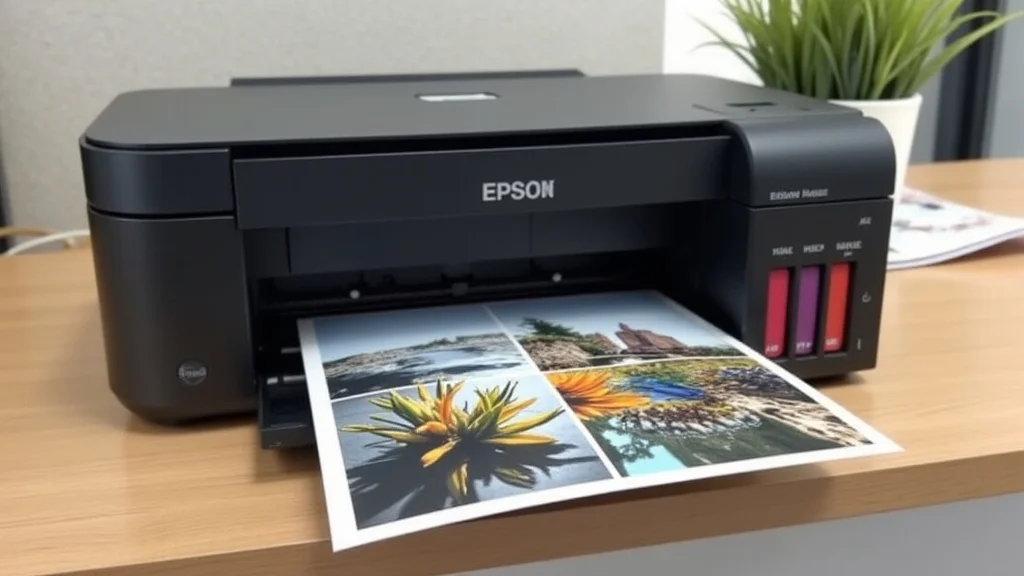
Remember that stack of photos from your last vacation? You know, the ones still languishing on your phone or buried somewhere in cloud storage? I recently decided to finally print mine, and the quest to get perfect printing 4×6 photos on Epson printer was an adventure! It involved a few unexpected hiccups, a little bit of trial and error, and finally, some gorgeous prints. This guide will take you through everything you need to know, from choosing the right paper to getting the colors just right. You’ll learn how to get beautiful prints without spending hours troubleshooting. Get ready to transform your digital memories into tangible keepsakes and stop photos from staying trapped online. Let’s make this printing experience a great one.
Key Takeaways
- Learn the optimal settings for printing 4×6 photos on Epson printer to achieve superior image quality.
- Discover how to choose the right photo paper to suit your specific needs and desired finish.
- Get practical tips on adjusting your printer settings to match the color profile of your photo paper.
- Understand how to easily troubleshoot common printing problems, such as color inaccuracies or banding.
- Find out how to keep your printer maintained to extend its lifespan and guarantee perfect prints.
- Explore the options for different Epson printer models and their capabilities for photo printing.
Choosing the Right Epson Printer and Photo Paper
The first step in achieving stunning prints is selecting the right equipment. Many Epson printers are well-suited for photo printing, but some models are better than others. Consider the specific features you need, like the maximum print size, ink technology, and connectivity options. Moreover, your choice of photo paper significantly impacts the final results. Different paper types provide distinct finishes, textures, and color reproduction capabilities. This section will guide you through picking the perfect combination for printing stunning 4×6 photos.
Selecting an Epson Printer for Photo Printing
Epson offers a wide range of printers, from compact home models to professional-grade photo printers. For printing 4×6 photos on Epson printer, look for models that are specifically marketed as photo printers or all-in-one printers with high-quality photo printing capabilities. These printers typically have features like dedicated photo ink cartridges, advanced color management systems, and high print resolutions. Consider features such as wireless connectivity for ease of use. Selecting the right model can lead to professional-looking results in the comfort of your home.
- Inkjet Technology: Epson inkjet printers use ink cartridges or continuous ink systems to spray ink onto the paper. This technology enables high-resolution prints with smooth color gradients. Many models offer Claria ink, which is designed for archival-quality photo prints. It produces vibrant, long-lasting photos.
- Print Resolution: Print resolution, measured in dots per inch (DPI), affects the detail and sharpness of your prints. Aim for a printer with a minimum resolution of 5760 x 1440 DPI or higher for excellent photo quality. Higher DPI ensures fine details and smooth transitions in your images. It helps prevent noticeable dot patterns and makes images appear more professional.
- Ink Cartridge System: Epson printers use various ink systems, including individual ink cartridges or multi-color cartridges. Individual ink cartridges, common in photo printers, give you the flexibility to replace only the colors you use. They minimize waste. Some printers feature six or more ink colors. This expands the color gamut for more realistic prints.
- Connectivity Options: Epson printers offer a range of connectivity options, including USB, Wi-Fi, and Ethernet. Wi-Fi printers offer wireless printing from computers, smartphones, and tablets. This makes it convenient to print from anywhere in your home. Some printers also support mobile printing services.
- Printer Size and Cost: Printer size can vary from compact home printers to larger professional models. The size of the printer should fit in your available space. Budget is also an important factor. Prices range from affordable entry-level models to higher-end photo printers. Consider your budget to choose a printer that offers the features you need.
Inkjet technology is a proven and reliable method, making it a great option for photo printing. It uses fine nozzles to spray tiny ink droplets. Different models use different ink formulations. Some provide outstanding color accuracy and longevity. The quality of inkjet printers has significantly improved over the years.
High DPI values translate to more detail in the printed image. For standard 4×6 prints, the resolution should be at least 300 DPI. A higher resolution is generally better, but always check your printer specifications. Consider the file size and resolution of your original images. Make sure your printer matches the level of detail.
Individual cartridges are a smart choice because they reduce expenses. Multi-color cartridges are a more basic and cost-effective option for occasional use. The ink system affects the printer’s running costs and the quality of your images. Consider the long-term cost of ink replacement when selecting a printer. Choose an ink system that fits your budget and print requirements.
Wireless connectivity enhances the user experience. Consider your network setup and how you will primarily print. USB connections are reliable but require a direct connection. Ethernet offers a stable and secure connection. These options provide different levels of convenience and accessibility.
The cost includes both the initial price of the printer and ongoing costs, like ink replacement. Choose a printer that suits your needs and doesn’t exceed your budget. There are many options available. You can find a printer that balances quality, features, and cost. Consider any special promotions or discounts available before making your decision.
Selecting the Right Photo Paper for 4×6 Prints
The type of photo paper you choose is as essential as the printer itself. Photo paper comes in several different finishes, including glossy, semi-gloss, matte, and luster. Each finish gives a distinct look and feel to your prints. Glossy paper provides a shiny, reflective surface that enhances color vibrancy and contrast. Semi-gloss paper offers a balance between gloss and matte finishes. This reduces glare. Matte paper has a non-reflective surface, ideal for portraits. Choosing the correct paper will make a massive difference in your results.
- Glossy Photo Paper: Glossy paper is known for its high-shine finish. It enhances color saturation and contrast. It is perfect for images where vibrant colors and sharp details are important. Glossy paper is best for portraits, landscapes, and photos that you want to stand out. It creates professional-looking prints.
- Semi-Gloss/Satin Photo Paper: Semi-gloss or satin paper offers a middle ground between glossy and matte finishes. It has a slight sheen that reduces glare. This is great for prints viewed under varied lighting conditions. Semi-gloss is versatile. It is suitable for a wide variety of photos, including portraits, family photos, and general use.
- Matte Photo Paper: Matte paper has a non-reflective, flat finish. It is excellent for photos where you want to reduce glare. It is great for art prints, black and white photos, and images with softer colors. Matte paper provides a more understated look. It’s often used for professional presentations.
- Luster Photo Paper: Luster paper is between glossy and matte. It has a slight sheen, similar to semi-gloss. It is known for its durability and resistance to fingerprints. It offers an attractive surface without the strong reflectivity of glossy paper. It provides excellent color reproduction.
- Paper Weight and Thickness: The weight and thickness of photo paper affect its feel and durability. Thicker papers tend to feel more premium and are less prone to curling. Paper weight is measured in grams per square meter (GSM). A higher GSM indicates a thicker paper. Consider the weight and thickness for the kind of photos you want to print.
Glossy paper reflects light. This means it may cause glare under bright light conditions. It’s important to choose the right paper for your needs. Always handle glossy prints carefully to avoid fingerprints. Glossy papers often deliver the most visually appealing results.
Semi-gloss paper has a balance of color vibrancy and surface texture. It resists fingerprints better than glossy paper. The slightly textured surface gives a quality feel. It makes it a popular choice for many photographers. It is durable and well-suited for prints that will be handled.
Matte paper provides a texture to the print. This paper often shows fine details well. It’s suitable for images needing a natural feel. It does not show fingerprints, and it can be easily mounted or framed. It is a good choice if you want a more subdued image.
Luster paper is a versatile option for various photo types. It is often the preferred choice for professional portraits and wedding photos. It delivers high-quality prints. The surface is less prone to showing fingerprints, and it looks professional. It works well in most lighting conditions.
Heavier papers are a good option for prints that will be framed or handled often. Thicker papers are often less prone to show through, which can be an issue with lighter papers. Consider your printer’s specifications to make sure it can handle the chosen weight and thickness. Choose a weight that suits your project.
Configuring Your Epson Printer for Printing 4×6 Photos
Once you have selected your printer and photo paper, it’s time to configure your Epson printer settings for printing 4×6 photos on Epson printer. Proper configuration ensures the best results by matching the printer’s settings to the paper and the image’s needs. This involves choosing the right paper type, setting the print quality, and using the correct color profiles. This section will guide you through these critical settings.
Selecting the Paper Type and Size
Your printer needs to know what kind of paper you’re using. Selecting the correct paper type in the printer settings ensures the printer applies the right amount of ink and produces the best colors. The paper size should be set to 4×6 inches. Make sure the paper is loaded properly in the paper tray. This will ensure proper alignment and prevent any issues.
- Accessing Printer Settings: You typically access the printer settings through the print dialog box of your application. This is available in most programs, such as photo editing software or document viewers. Select the “Print” option. This will bring up a dialog box with different settings.
- Choosing the Paper Type: The printer settings will include a dropdown menu or a list where you choose the paper type. Select the correct option. The correct setting tells the printer which inks and print parameters to use. Common options include Glossy Photo Paper, Semi-gloss, Matte Photo Paper, and Luster Photo Paper.
- Setting the Paper Size: Set the paper size to 4×6 inches. This is the standard size for most photo prints. Make sure your photos are sized correctly for 4×6 inch prints. If not, the printer will automatically resize them.
- Paper Loading: Load your 4×6 photo paper into the printer’s paper tray correctly. The specific method depends on your printer model. Most Epson printers require you to load the paper with the print side facing up or down. Always consult your printer’s manual for precise instructions.
The printer dialog box gives access to all the configuration options. The layout may vary slightly depending on your application and operating system. Locate the printer options or the “Properties” section. Use the dropdown menus and checkboxes to configure the settings.
Make sure the paper type setting matches the paper you are using. If the settings are not correct, the colors may appear incorrect or the print quality may be low. Always double-check your selection before printing. The correct paper type setting optimizes ink usage and color accuracy.
Confirm the paper size setting, as this affects the final print size. If your printer supports borderless printing, you can choose this to print the image to the edge of the paper. This will give your print a clean, professional look. Choose “Borderless” if you want to print without borders. If not, the printer will include a small white border around the image.
Loading the paper the wrong way can result in blank prints. Make sure your paper edges are aligned to avoid paper jams. The manual will show you the correct way to load the paper. Before a print, check the paper alignment. This ensures prints are centered and aligned properly.
Setting the Print Quality and Color Management
Print quality controls how much detail is reproduced in your photo. Color management is key to ensuring colors appear accurately. These settings will have a large impact on the quality of your printed photos. Adjusting these settings will give you consistent, high-quality prints that match your screen’s appearance.
- Print Quality Settings: Choose the highest print quality setting to get the best results. Higher quality settings use more ink and take longer to print, but the results will be better. Most Epson printers offer various quality settings. Some common options include “Best,” “High,” and “Photo.”
- Color Management: Choose the correct color management settings to ensure accurate color reproduction. Most Epson printers allow you to manage colors either through the printer driver or your photo editing software. If you manage colors through the printer driver, select the “Epson Color Controls” or similar option.
- Color Profile Selection: The color profile tells your printer how to interpret and reproduce colors. The color profile is found in your printer driver or editing software. Look for a section labeled “Color Profile.” You should use a profile that matches the paper you are using. Epson often provides profiles for its papers.
- Borderless Printing: You can choose borderless printing for a clean, professional look. Borderless printing allows you to print to the very edge of the paper. Most Epson printers offer this option. Choose the option in the print settings. Select the appropriate paper size setting.
When you are printing 4×6 photos on Epson printer, always pick the highest quality settings for photo prints. These settings ensure you get the maximum level of detail and color accuracy. Consider the amount of ink you want to use. You might want to experiment to find your ideal balance of quality and speed. You may not need the highest setting for casual prints.
If you prefer to manage colors from your photo editing software, you’ll need to select the appropriate color profile. This profile should match the type of paper you’re using. The software will apply the color profile to your print. The profiles can be specific to your printer model and paper type.
If the right profile is not available, you can download profiles. The paper manufacturer’s website is a good place to start. If you do not select a correct profile, colors may appear inaccurate. You may see shifts in color or inaccurate skin tones. Color profiles will ensure the colors match your expectations.
If the printer does not offer borderless printing, you will have a small white border. Borderless printing is great for photos. It can give prints a more refined look. Make sure the printer settings match the physical setup before printing. It will prevent a situation where the image is cut off.
Troubleshooting Common Printing Problems
Even with careful preparation, issues can happen. These problems can range from color inaccuracies to streaks or banding. This section will guide you through common issues when printing 4×6 photos on Epson printer and offer solutions to fix them. Understanding these issues will help you resolve them quickly and get back to printing high-quality photos.
Color Problems and How to Fix Them
Color inaccuracies are some of the most frustrating issues in photo printing. Colors that look great on your screen may appear different when printed. This section covers various color-related problems and how to get correct color reproductions.
- Incorrect Color Profiles: Selecting the wrong color profile is the leading cause of color errors. Make sure your color profile matches the paper you are using. The color profile ensures that colors are translated. It ensures they are reproduced correctly by the printer.
- Calibration Issues: Regular printer calibration helps ensure accurate color reproduction. Some Epson printers have built-in calibration tools. These tools optimize the printer’s color settings. Use the calibration tool periodically. This helps maintain consistent prints.
- Ink Cartridge Problems: Low ink or clogged ink nozzles can cause color problems. Inspect the ink levels in your cartridges. Replace any that are low. Run a nozzle check to see if all nozzles are working correctly.
- Monitor Calibration Issues: Ensure that your monitor is properly calibrated. If your monitor colors are off, the colors you see won’t match what is printed. You can use monitor calibration tools to correct color inaccuracies. They will make sure colors appear accurately on the screen.
If you choose the wrong profile, colors will likely appear inaccurate. This may include color casts, shifts in hues, or washed-out images. Always select the paper profile when printing photos. You should find the profile on the paper’s packaging or the manufacturer’s website.
Without calibration, colors can drift over time. Calibration corrects any color shifts and ensures colors are consistently reproduced. Check your printer’s manual for specific calibration instructions. These instructions can vary by printer model.
Clogged nozzles can lead to banding. It may cause stripes in your prints. This will disrupt the smooth color gradients. If the nozzle check shows missing nozzles, run a cleaning cycle. You might need to run several cleaning cycles to clear the clogs.
If your monitor displays incorrect colors, this will affect your expectations. Your prints will not match your screen. Calibrating your monitor helps to ensure that what you see is what you get. Regularly calibrate your monitor.
Dealing With Streaks, Banding, and Other Print Quality Issues
Besides color problems, other print quality issues may occur. Streaks and banding can detract from the visual quality of your photos. This section offers solutions to problems like banding, streaks, and other print imperfections. These actions will improve the overall quality of your printed photos.
- Banding: Banding is when you see horizontal or vertical lines in your prints. It’s often due to clogged print nozzles or low ink levels. You can run a nozzle check from your printer’s maintenance menu to diagnose this problem. A nozzle check prints a test pattern. It helps to identify clogged nozzles.
- Streaks: Streaks appear as uneven lines or smudges on the prints. Streaks are often due to a dirty print head. You can clean the print head with a cleaning cycle. You can also clean the printer’s print head manually. Use a lint-free cloth or a specialized cleaning solution.
- Paper Feed Problems: Paper feed issues, such as jams or misfeeds, can lead to print errors. This is typically due to incorrect paper loading or using the wrong type of paper. Make sure you load the paper correctly in the paper tray. Check for any obstructions.
- Ink Smudging: Ink smudging often occurs when the ink does not dry fast enough. Using the right kind of paper will help. Adjust the print settings. Increase the drying time between print passes.
If the test shows missing lines, run a print head cleaning cycle. It can be found in the printer’s maintenance menu. You might need to run several cleaning cycles. You might also want to replace the ink cartridge. It can ensure proper ink flow. The main goal is to clear any obstruction to ensure the printer head functions properly.
The print head is crucial for transferring ink onto the paper. Cleaning removes debris and excess ink. It can improve print quality. This will produce smooth and clear photos. The maintenance process is essential for achieving high-quality results.
Paper jams can cause a variety of print defects, including streaks and smudges. They can also damage the printer. To avoid paper feed issues, always use the recommended paper type. Regularly inspect and clean the paper feed rollers. This will prevent potential issues.
Allowing the ink sufficient time to dry will help prevent smudging. Avoid handling the print immediately after it comes out of the printer. Wait until it is dry before you touch it. Store prints in a dust-free environment.
Maintaining Your Epson Printer for Optimal Performance
Regular maintenance can extend the lifespan of your Epson printer and ensure high-quality prints. This includes cleaning the print head, aligning the print heads, and replacing ink cartridges when necessary. Cleaning and maintaining your printer will help maintain print quality. They also avoid costly repairs. Following a maintenance schedule will keep your printer in top condition. This leads to exceptional photos for years.
Cleaning and Care of Your Epson Printer
Your Epson printer needs regular cleaning to keep it operating smoothly. Cleaning the print head and the exterior will prevent common printing problems. Following a cleaning schedule is key to making sure you have long-lasting, high-quality prints.
- Print Head Cleaning: The print head is critical for high-quality printing. It should be cleaned regularly to prevent clogs. Your printer’s maintenance menu will contain instructions on how to start the cleaning cycle. Epson printers have automated cleaning cycles.
- Nozzle Check: The nozzle check is a test print that shows if all the nozzles are working. The nozzle check ensures that all the ink nozzles are dispensing ink properly. Run the nozzle check regularly. This will identify clogged nozzles.
- Exterior Cleaning: Clean the exterior of the printer to remove dust and dirt. Use a soft, damp cloth. Avoid using harsh chemicals. Wipe the printer’s surface regularly.
Depending on usage, cleaning cycles should be carried out every few weeks. This will clear any dried ink. If you notice streaks or color issues, clean the print head. Proper print head maintenance is important. The machine will keep on working at its best.
A nozzle check will print a test pattern. The pattern will reveal any missing lines or color problems. If the nozzle check reveals any clogged nozzles, run a print head cleaning cycle. Run several cleaning cycles. Proper nozzle function will lead to quality photos.
Clean the printer’s exterior to remove dust and dirt. Dust and debris can affect your prints. Always unplug the printer before cleaning. Regularly cleaning the printer is important. This will prevent dust buildup and keep the printer looking good.
Proper Storage and Handling of Photo Prints
After you printing 4×6 photos on Epson printer, storing and handling your prints will impact their longevity. Proper handling and storage can protect the photo from damage. Consider these points to protect your prints. Proper care of your photos will help them last a long time.
- Handling Prints: Handle prints by their edges. Try not to touch the printed surface. This prevents fingerprints and smudging. Use clean hands when handling your prints.
- Storage Conditions: Store photo prints in a cool, dry place. Avoid direct sunlight. Sunlight can fade colors. Avoid storing prints in areas with high humidity, such as basements.
- Protective Measures: Store your photos in albums, archival boxes, or sleeves. These protect your prints from dust and scratches. Choose archival-quality materials. These materials won’t damage your photos.
- Avoid Extreme Temperatures: High temperatures can cause colors to fade. Low temperatures and fluctuations can cause prints to become brittle. Store your photos at room temperature. Try to avoid extreme changes in temperature.
Fingers can leave oils and other substances on the surface of the paper. This will ruin the image. Always handle your prints carefully to prevent damage.
Humidity and moisture can damage your photos. Choose a safe place to store your prints. They will last longer in a controlled environment. The temperature and humidity affect the lifespan of the prints.
Archival boxes and sleeves are specifically designed for long-term storage. They provide a barrier. They will protect your photos from the elements. These materials will improve the lifespan of the photos.
Changes in temperature and temperature extremes can affect the prints. Maintain a stable environment to keep your photos in their best condition. Proper storage is a good way to improve the quality.
Frequently Asked Questions
Question: Can I print 4×6 photos on any Epson printer?
Answer: No, not all Epson printers are suited for photo printing. However, many models offer excellent 4×6 photo printing capabilities. These often include models with dedicated photo ink systems and high-resolution capabilities.
Question: What is the best paper for printing 4×6 photos?
Answer: The best paper depends on the look you want. Glossy paper offers vibrant colors. Semi-gloss provides a balance. Matte paper gives a non-reflective finish. Luster paper is popular for versatility and resistance to fingerprints.
Question: How do I ensure my colors look accurate?
Answer: You can ensure accurate colors by choosing the right color profile. The profile will need to match your paper type. You should also calibrate your monitor. This will match the colors displayed on your screen to your prints.
Question: What should I do if my prints have streaks?
Answer: Streaks are often caused by a clogged print head. Run a cleaning cycle from your printer’s maintenance menu. You might need to do this several times. If it does not improve, try a manual cleaning of the print head.
Question: How often should I clean my Epson printer?
Answer: You should clean your Epson printer regularly. This should include a print head cleaning every few weeks. You may also need to clean the print head more often if you see streaks or other print issues.
Final Thoughts
Printing 4×6 photos on Epson printer can transform digital images into beautiful, physical keepsakes. From choosing the correct photo paper and selecting the right printer settings to troubleshooting common issues, the process might seem intricate at first. However, by exploring these steps, you can confidently print your photos. You can easily overcome any difficulties. Proper printer maintenance and correct print settings will help ensure that you consistently achieve the high-quality photos. With a little bit of practice, you can easily produce prints that will amaze your family and friends. So, gather those digital memories, pick the best photos, and begin to print. Turn those digital memories into a treasured display. You now have the knowledge and tools for an awesome print experience.