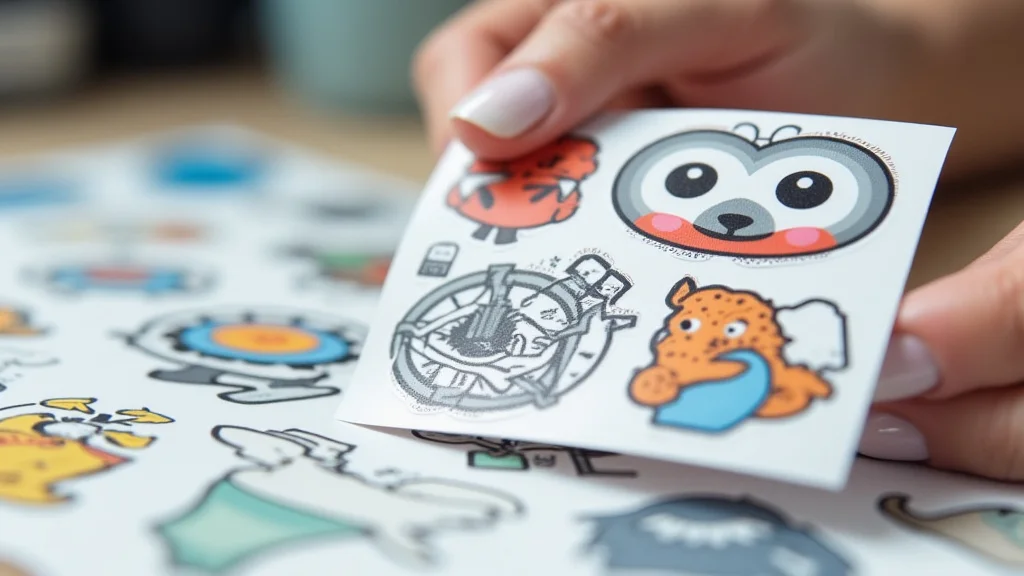
Remember that time you spent ages searching for the perfect stickers, only to be disappointed by the price or the selection? We’ve all been there! But what if you could create your own, exactly how you want them? This guide explores the simple and rewarding process of printing your own stickers at home. You’ll learn everything you need to know, from choosing the right materials to designing your own unique creations. You’ll gain practical skills and inspiration to bring your ideas to life. By the end, you’ll be creating awesome stickers for any occasion. This guide is your ticket to sticker freedom!
Key Takeaways
- Discover the essential materials and equipment needed for printing your own stickers at home.
- Learn about the different types of sticker paper and how to choose the right one for your project.
- Explore various design software and techniques to create stunning sticker art.
- Master the printing process, from setup to final cut, for flawless sticker production.
- Find out tips for cutting your stickers accurately, whether manually or with a cutting machine.
- Explore unique project ideas and creative uses for your custom-made stickers.
Getting Started: Materials and Equipment
Before you begin the exciting task of printing your own stickers at home, gather the necessary materials. This ensures a smooth and enjoyable process. This section details the essential supplies to begin your journey, covering everything from paper to cutters.
Essential Supplies for Sticker Making
- Sticker Paper: The most crucial element, sticker paper comes in various types like vinyl, glossy, matte, and transparent. The choice depends on your desired finish and use. Vinyl is great for durability and water resistance, while matte offers a more understated look.
- Printer: An inkjet printer is generally recommended for printing stickers at home due to its ability to handle different types of paper and produce high-quality prints. Laser printers can be used, but they might not always be ideal for sticker paper, potentially causing issues with the adhesive.
- Scissors or Craft Knife: For cutting out your stickers, you’ll need sharp scissors or a craft knife. Ensure they are precise for clean edges. A cutting mat is essential if you’re using a craft knife to protect your work surface.
- Design Software: Programs such as Adobe Photoshop, Illustrator, Canva, or GIMP are used to create the designs. Consider your skill level and budget when selecting software. Many free options offer sufficient features for beginners.
- Cutting Machine (Optional): Machines such as Cricut or Silhouette make cutting stickers easier and more precise. These machines connect to your computer and automatically cut out your designs. This is a great choice for mass production.
Having the correct materials makes all the difference when you start creating your own stickers. It’s about knowing what works best for your design and the outcome you want to achieve. Choosing the right supplies will enable you to explore your creativity and create fantastic stickers.
Printer Selection and Considerations
Choosing the correct printer is crucial for high-quality stickers. Consider several factors before making your choice. This section clarifies printer requirements.
- Inkjet vs. Laser: Inkjet printers are generally better for sticker printing, as they handle a range of paper types well. Laser printers use heat, which can sometimes damage the adhesive or cause the paper to curl. Always check the manufacturer’s recommendations for your chosen sticker paper.
- Print Quality (Resolution): Higher resolution printers (measured in DPI – dots per inch) produce sharper and more detailed prints. This is essential for sticker designs, especially those with intricate details or small text. Aim for at least 300 DPI for optimal results.
- Ink Type: Pigment-based inks are generally more fade-resistant and water-resistant than dye-based inks. This is a crucial factor if your stickers will be exposed to sunlight or moisture. Consider the long-term durability of your designs when selecting your printer.
- Printer Features: Some printers offer features like borderless printing, which is useful for creating stickers that extend to the edge of the paper. Also, consider the cost of ink cartridges, as this impacts the overall cost per print.
Selecting the appropriate printer is a key part of the process. It’s not just about producing stickers but also about ensuring the quality and durability of your designs. Do research to find a printer that is suitable for your project and your budget.
Choosing the Right Sticker Paper
Selecting the right sticker paper is vital for printing your own stickers at home. The paper significantly impacts the final product’s appearance, durability, and functionality. This section explores the various paper options and their different properties.
Types of Sticker Paper Explained
- Glossy Sticker Paper: This type of paper offers a shiny, reflective finish, making colors appear vibrant and saturated. It’s ideal for stickers that need to stand out, like promotional materials or decorative designs. However, glossy paper is more prone to showing fingerprints and is not as water-resistant as some other options.
- Matte Sticker Paper: Matte sticker paper has a non-reflective, understated finish. It’s a great choice for stickers that require a more professional or classic look. It’s easier to write on and is less likely to show fingerprints.
- Vinyl Sticker Paper: Vinyl paper is water-resistant and more durable, making it suitable for stickers exposed to the elements or frequent handling. It comes in both glossy and matte finishes and is perfect for outdoor use or items that may get wet.
- Transparent Sticker Paper: This paper is designed to be translucent, allowing the background to show through the sticker. It’s ideal for creating designs that blend with the surface they are applied to, such as logos on glass or packaging. It comes in both inkjet and laser printer versions.
Choosing the correct sticker paper goes beyond aesthetics; it’s also about matching the function and environment where the sticker will be used. From glossy to matte, the paper type you choose will play a major role in the overall success of your project.
Understanding Adhesive Properties
The adhesive of your sticker paper is a key consideration. The right adhesive ensures your stickers stick properly and last. This part clarifies the different adhesive types.
- Permanent Adhesive: This type of adhesive creates a strong bond that’s difficult to remove once applied. It is suitable for applications where the sticker needs to stay in place long-term, like product labels or outdoor use.
- Removable Adhesive: Removable adhesives are designed to be repositionable and can be removed without leaving residue. They are ideal for temporary applications like event stickers or promotional materials.
- Repositionable Adhesive: Similar to removable adhesive, but designed to allow for repeated sticking and removal. These adhesives are great for reusable stickers or projects where you might need to adjust the sticker’s position.
- Specialty Adhesives: Some sticker papers feature specialty adhesives, such as those that are waterproof, oil-resistant, or suitable for specific surfaces like fabric. Consider the needs of your project when selecting these specialized options.
Understanding adhesive properties helps you ensure your stickers will stick properly and serve their intended purpose. Your choice will directly affect the sticker’s performance, so choose wisely.
Design and Printing Techniques
Once you’ve selected your materials, it’s time to bring your ideas to life. This section explores the design and printing your own stickers at home methods.
Design Software and Techniques
- Free Design Software: Canva and GIMP are excellent free options for designing stickers. Canva offers user-friendly tools and templates, while GIMP provides more advanced features for image editing and design.
- Paid Design Software: Adobe Photoshop and Illustrator offer extensive features and professional-grade tools. They are ideal for complex designs and precise editing, but require a subscription.
- Vector vs. Raster Graphics: Vector graphics (like those created in Illustrator) are resolution-independent, meaning they can be scaled to any size without losing quality. Raster graphics (like those created in Photoshop) are resolution-dependent and may appear pixelated when enlarged. Vector graphics are usually better for stickers.
- Creating a Design: Start by brainstorming ideas. Create a sketch, then move to your design software. Use colors, fonts, and images to create the desired look. Ensure your design is the correct size and resolution for printing.
Mastering design software and techniques is crucial for creating your own stickers. Experiment with tools and get creative. The more you explore, the better your skills will become. The more skills you obtain, the easier the process will become.
Printing Your Stickers at Home: Step-by-Step
Follow these steps to print great stickers. This process ensures the best results.
- Prepare Your Design: Finalize your sticker design in your chosen software. Ensure the design is the correct size and resolution, usually 300 DPI for high quality. Add a small bleed (extra space around the design) to allow for cutting.
- Print Settings: Open the print dialog box in your design software. Select your printer and choose the correct paper type in the printer settings. Set the print quality to “high” for optimal results. Ensure any necessary color profiles are selected.
- Test Print: Before printing your final batch, print a test sheet on regular paper to ensure your design looks correct and the colors are accurate. Adjust the print settings as needed.
- Printing the Stickers: Load your sticker paper into the printer. Carefully print your designs, ensuring the paper feeds correctly. Let the ink dry completely before handling the printed sheets, especially if using an inkjet printer.
- Cutting Your Stickers: Cut out your stickers using scissors, a craft knife, or a cutting machine. For manual cutting, use a straight edge for precise lines. For cutting machines, upload your design and follow the instructions to cut the stickers.
This process guides you through each stage of printing your stickers at home, from design preparation to the final cut. By carefully following these steps, you will make excellent stickers.
Cutting Your Stickers: Manual and Machine Methods
After you print your designs, cutting is the final stage. The correct cutting method ensures professional-looking stickers. Here’s a breakdown of the two common approaches.
Manual Cutting Techniques
- Using Scissors: Sharp scissors are essential for manual cutting. Cut slowly and carefully, following the edges of your design. For curved edges, rotate the paper instead of the scissors to maintain accuracy.
- Using a Craft Knife: A craft knife provides more precision, especially for intricate designs. Use a self-healing cutting mat to protect your work surface. Use a ruler to ensure straight cuts, applying light but firm pressure.
- Tips for Accuracy: Print your design with a border, or “bleed,” around the edges, to prevent white edges. Keep your tools sharp. Take your time, and make sure your hands are steady.
- Weeding: For designs with small parts, use a weeding tool (a needle or a small pointed tool) to remove excess sticker material before removing the sticker from its backing.
Manual cutting requires patience and a steady hand, but it’s a cost-effective choice for small batches of stickers. These techniques will improve your results.
Using Cutting Machines: A Better Way
- Cutting Machine Brands: Cricut and Silhouette are popular cutting machine brands. These machines connect to your computer and cut your designs with precision. The main difference lies in the software. Research which model and software is best for your projects.
- Setting Up Your Design: Upload your design to the cutting machine software. Most software lets you trace the printed image or upload a digital file, like a PNG or SVG.
- Calibration and Test Cuts: Perform a test cut to ensure the machine is properly calibrated and cutting precisely around your design. This is especially important for designs with detailed cut lines.
- Cutting Process: Load your sticker paper into the cutting machine and select the correct material settings. The machine will cut your design with great accuracy. Remove the stickers from the machine carefully.
Cutting machines automate the cutting process, allowing for greater precision and speed. The initial investment might be more, but it can save time, especially for bulk sticker projects. They also are very effective for detailed work.
Creative Sticker Project Ideas and Uses
Once you can print your own stickers, the possibilities are endless! Here are some creative ideas to inspire you.
Personalized Stickers
- Custom Labels: Design and print labels for jars, containers, or homemade products. You can include branding elements like logos. This adds a custom touch to products.
- Party Favors: Create stickers for party favors with personalized messages or images. Great for birthdays, weddings, or any special occasion.
- Scrapbooking and Journaling: Use stickers to add visual flair to your scrapbooks, journals, and planners. Design stickers with quotes, decorative elements, or images to personalize these projects.
- Name Stickers and Tags: Create name tags for school supplies, gifts, or events. These are useful for identifying items easily and efficiently.
Personalized stickers offer a fun way to express your creativity. Whether you’re making labels, party favors, or scrapbook embellishments, you can create a custom look.
Promotional and Business Stickers
- Branding and Logos: Create stickers with your company logo and brand elements for packaging, marketing materials, or giveaways. This reinforces brand recognition.
- Product Labels: Design stickers for product labeling, including information like product names, descriptions, and ingredients. These are essential for product branding.
- Promotional Stickers: Create stickers for advertising promotions, discounts, or special events. This is a cost-effective way to get attention.
- Packaging: Use stickers to seal product packaging or add a decorative touch. This gives your products a professional look.
Promotional and business stickers are a useful tool for marketing. They are cost effective, and they help you get your brand noticed.
Decorative Stickers and Hobbies
- Decorative Stickers: Design stickers with various images, patterns, or quotes to decorate notebooks, laptops, water bottles, and other items.
- Craft Projects: Use stickers for various craft projects, such as card making, decorating gifts, or creating art pieces.
- Sticker Sheets: Create complete sticker sheets with various designs and sizes. This is excellent for variety and creative use.
- Collectibles: Create your stickers to trade or sell. Develop your own sticker series or collection, which can be fun and profitable.
Decorative stickers add creative elements to your life. From decorating items to starting a collection, there is a limitless set of possibilities.
Common Myths Debunked
Several misconceptions exist. This section clarifies these and offers accurate information.
Myth 1: Printing Stickers at Home Is Too Difficult
Reality: While it may seem complicated, printing your own stickers at home is much easier than people think. With the correct equipment, basic design skills, and a little practice, anyone can start. Many online resources and user-friendly software programs are available to guide you through the process.
Myth 2: You Need Expensive Equipment to Get Quality Results
Reality: While professional equipment provides high-end results, you can produce excellent stickers with a standard inkjet printer and reasonable sticker paper. The key is in the design and attention to detail. Cutting machines speed up the process, but you can achieve great results by cutting by hand.
Myth 3: All Sticker Paper Is the Same
Reality: Sticker paper comes in various types, including glossy, matte, vinyl, and transparent, each offering different finishes, properties, and adhesive strengths. Choosing the right paper for your project is important. The correct paper impacts the appearance, durability, and functionality of your stickers.
Myth 4: Inkjet Printers Are Not Suitable for High-Quality Stickers
Reality: Inkjet printers, particularly those with pigment-based inks, can produce excellent quality stickers. The resolution (DPI) of your printer is a more significant factor. Printers with a higher DPI (300+) will provide the best results, creating sharp and detailed sticker prints.
Myth 5: It’s Cheaper to Buy Stickers Than Print Your Own
Reality: For small quantities or custom designs, creating your own stickers is often more cost-effective. While there is an upfront investment in supplies, the per-sticker cost is often lower than buying pre-made stickers, especially if you consider personalization and design control.
Frequently Asked Questions
Question: What printer is best for printing stickers at home?
Answer: An inkjet printer is usually best because it handles various paper types and produces high-quality prints. Laser printers can be used, but sometimes cause issues with sticker adhesives.
Question: Can I use regular paper for stickers?
Answer: No, regular paper is not designed to be used for stickers. It doesn’t have an adhesive backing. You will need to use sticker paper, which has a self-adhesive backing.
Question: What design software is best for creating stickers?
Answer: Canva is very easy to use and provides many design templates. Adobe Photoshop and Illustrator are excellent for professional results, but they require a subscription.
Question: How do I make my stickers waterproof?
Answer: Use vinyl sticker paper, which is water-resistant. You can also apply a laminate or sealant over the sticker after printing for additional protection.
Question: What do I do if my stickers are not cutting correctly?
Answer: Check your blade settings. Make sure your design is properly calibrated and the cut lines are accurate. Run test cuts on a small piece of paper to fine-tune the settings before you start cutting a big batch.
Final Thoughts
Printing your own stickers at home is an easy way to unleash your creativity and bring your ideas to life. From creating labels for your homemade goods to designing unique decor for your personal items, the possibilities are unlimited. You have gained a grasp of the essential supplies, printing methods, and cutting techniques to start printing fantastic stickers. You also learned the many paper types, design methods, and the differences between manual and machine cutting. The world of sticker creation is yours to explore, whether you are crafting for personal use, creating promotional materials, or starting a small business.