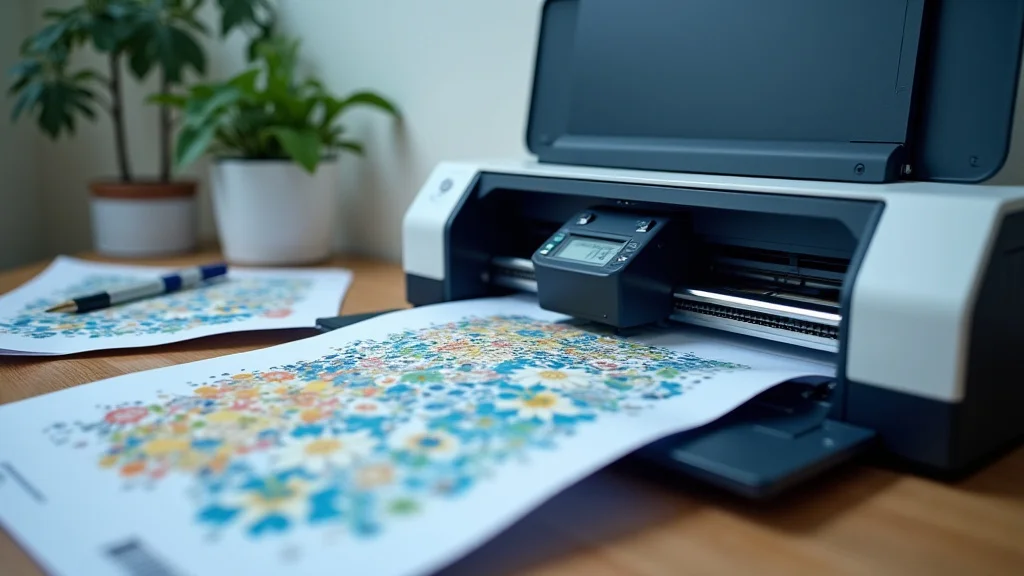
Remember that frustrating moment when you’re trying to print a crucial document, but your printer decides to act up? The paper jams, the ink runs out, and your deadline looms closer. We’ve all been there! This guide is designed to help you avoid those stressful situations. You’ll learn how to approach any printing task with confidence. You’ll also learn the best methods to ensure high-quality prints every time. Get ready to transform your printing task experiences from a source of frustration to a breeze!
Key Takeaways
- Learn how to prepare your documents for the best possible print quality.
- Discover the best practices for setting up your printer for optimal performance.
- Understand the common causes of print problems and how to troubleshoot them.
- Explore different types of paper and how they impact your printing results.
- Gain knowledge about various printing technologies and their respective benefits.
- Find out how to manage print jobs effectively to save time and resources.
Preparing Your Documents for a Perfect Printing Task
Before you even think about hitting the “print” button, the quality of your document significantly affects your final output. Correct document preparation is important for achieving professional-looking results and preventing frustrating issues like incorrect formatting or missing elements. This step involves several key considerations that will ensure your printed documents look their best.
Formatting for Print: Font Selection and Margins
Selecting the right font and setting appropriate margins are fundamental steps in preparing your document for a printing task. The font you choose can significantly impact readability. Consider using clear, easy-to-read fonts like Arial, Times New Roman, or Calibri. These fonts are generally well-suited for both on-screen viewing and printed documents. They offer good legibility, especially when printed in smaller sizes or on lower-quality paper. Avoid overly decorative or stylized fonts that can become difficult to read, particularly in large blocks of text.
- Font Size: A general guideline is to use a font size between 10 and 12 points for body text. This range provides a comfortable reading experience. For titles and headings, you can choose larger font sizes to make them stand out.
- Font Style: Stick to regular or bold font styles. Avoid using italics excessively, as they can be difficult to read. Bolding is a good way to emphasize key points or headings.
- Margins: Setting appropriate margins is essential for ensuring your document looks clean and well-organized. Standard margins (one inch on all sides) are a good starting point. Adjust margins based on your document’s purpose. Documents with lots of images or complex layouts may require wider margins. This is for visual appeal and preventing text or images from being cut off during printing.
- Line Spacing: Consider line spacing to improve readability. Single-spacing is suitable for concise documents, while 1.5 or double-spacing can make longer documents easier to read. Choose line spacing that fits your document’s content and design.
Image Resolution and File Format Optimization
Images play a significant role in making printed documents visually appealing and informative. Image resolution and the file format you choose can drastically affect the final output quality. Higher resolution images will look sharper when printed. File format selection impacts file size and how well the images are displayed during printing task.
- Image Resolution: For professional prints, ensure images have a resolution of at least 300 dots per inch (DPI). This will keep the images sharp. Low-resolution images can appear pixelated or blurry. Always check and optimize your images beforehand.
- File Formats: Choose the right file format for your images. JPEG is often used for photographs. PNG is excellent for images with transparent backgrounds. TIFF is perfect for high-quality images that require lossless compression.
- Image Compression: When using formats like JPEG, adjust the compression settings. This can reduce file size without losing too much image quality. For the best balance, experiment with different compression levels.
- Image Editing: Make sure your images are the right size and color mode before printing. Most printers handle CMYK color mode (Cyan, Magenta, Yellow, Key/Black). RGB (Red, Green, Blue) is usually used for screens.
Document Layout and Proofreading
Before sending your document for printing, focus on layout and meticulous proofreading. These steps are essential for ensuring your document looks professional and conveys your message effectively. Proper layout and error-free content will improve readability and make a positive impression.
- Page Breaks: Use page breaks to organize your document. Place page breaks between sections. This keeps different parts of your document separate and easy to navigate when printed.
- Headers and Footers: Add headers and footers to include page numbers, titles, and other important information. This helps readers stay organized.
- Proofreading: Thoroughly proofread your document for any spelling, grammar, or punctuation errors. Get a second pair of eyes to help. Errors distract readers and undermine the document’s credibility.
- Layout Review: Examine the layout to ensure it’s visually appealing. Make sure that text and images are aligned properly, and that there’s enough white space. This prevents a cluttered appearance.
Setting Up Your Printer for an Effective Printing Task
Once your document is prepared, setting up your printer correctly is a crucial step. Proper printer setup ensures high-quality prints and minimizes common problems like paper jams or color inaccuracies. This will include adjusting settings to match your needs and the type of print job you’re performing.
Printer Settings: Resolution, Color, and Paper Type
Your printer settings determine the quality of your printed output. The options available can significantly impact how your document appears. Understanding the different settings allows you to customize your printing task for the best possible results.
- Resolution: Printer resolution is usually measured in dots per inch (DPI). Higher DPI settings produce sharper, more detailed prints. For standard documents, 300 DPI is usually sufficient. Use higher settings (600 DPI or more) for images or detailed graphics.
- Color Settings: If you’re printing in color, select the appropriate color mode. Most printers use CMYK color, which is best for professional prints. If you’re printing photos, make sure your color profiles are set correctly. Choose the right profiles that match your printer and paper.
- Paper Type: Select the paper type that matches your printing task. Choose settings that match the paper you’re using (e.g., plain paper, photo paper, or card stock). This ensures that the printer applies the right amount of ink for the best results.
- Print Quality: Adjust the print quality settings. Some printers have different quality levels, such as draft, normal, and best. Higher quality settings use more ink and take longer to print, but produce better results.
Printer Alignment and Calibration
Proper alignment and calibration of your printer are essential for getting the best prints. Misalignment can lead to blurry prints. Calibration ensures that the printer’s colors are accurate. Setting these up correctly improves your printing task.
- Printer Alignment: Run the printer’s alignment tool. This aligns the print heads. The print heads are responsible for applying ink to the paper. Misalignment can cause lines and text to appear blurred.
- Calibration: Calibrate the printer’s colors. This ensures that the colors printed match what you see on your screen.
- Nozzle Check: Perform a nozzle check. This prints a test pattern to see if all the nozzles are working correctly. Blocked nozzles can cause gaps in prints or color streaks.
- Cleaning: Clean your print heads regularly. Cleaning can remove dried ink and other debris that can affect print quality.
Connectivity and Driver Updates
Make sure your printer connects correctly and that you have the most up-to-date drivers installed. Proper setup will guarantee that your printer communicates smoothly with your computer. This will prevent printing issues and make your printing task more efficient.
- Connectivity: Check your printer’s connection (USB, Wi-Fi, or Ethernet). Ensure the printer is connected securely to your computer or network.
- Driver Updates: Regularly update your printer drivers. Driver updates can fix bugs, improve performance, and add new features. Check your printer manufacturer’s website.
- Printer Software: Install and update the printer software. Printer software often includes utilities for maintenance, diagnostics, and print settings.
- Troubleshooting: If you experience connectivity issues, restart your printer and computer. Check the printer’s settings. Make sure that your computer recognizes the printer.
Troubleshooting Common Printing Problems
Even with careful preparation and setup, problems can sometimes occur. Troubleshooting helps you identify and fix these issues quickly. It’s important to understand the typical issues that can happen during a printing task. This will help you resolve them efficiently.
Paper Jams and Feed Problems
Paper jams are one of the most common printing problems. They can be frustrating and can stop your work. Paper jams are often caused by incorrect paper loading or paper quality issues. Understanding how to handle them quickly can save time and reduce stress.
- Paper Loading: Ensure the paper is loaded correctly. Align the paper with the guides. Make sure the paper isn’t overloaded.
- Paper Type: Use the right paper for your printer. Using the wrong paper type can cause jams. Thick or heavy paper types may not feed properly.
- Jam Removal: Carefully remove jammed paper. Consult your printer’s manual for specific instructions. Be sure to remove all torn pieces of paper.
- Maintenance: Regularly clean the paper feed rollers. Clean rollers help to feed the paper. Cleaning can prevent future jams.
Print Quality Issues: Blurry Text, Streaks, and Color Problems
Print quality issues can ruin your document’s appearance. Blurry text, streaks, and inaccurate colors can make your printouts look unprofessional. Problems with print quality can often be fixed by adjusting settings or performing some basic maintenance tasks. Taking care of your printer ensures high-quality results.
- Print Head Cleaning: Run the printer’s print head cleaning utility. This removes dried ink. Cleaning improves the print quality.
- Ink Levels: Check your ink levels. Empty cartridges can cause streaks or light prints. Make sure there is enough ink for your printing task.
- Alignment: Align your print heads. Misalignment can cause blurry prints. Alignment can fix these issues.
- Color Calibration: Calibrate your printer’s colors. This makes sure that the colors printed match the document. Color issues can be resolved with calibration.
Connectivity and Printing Errors
Connectivity and printing errors can prevent you from printing at all. These issues include the printer not being recognized by your computer. They also involve problems with network connections or driver problems. Properly managing these issues ensures a smooth printing process.
- Printer Offline: Ensure the printer is online. Check the printer’s power and network connection. Resetting the printer can often resolve the issue.
- Driver Issues: Reinstall your printer drivers. Outdated or corrupted drivers can cause errors. The latest drivers can resolve these issues.
- Network Problems: If printing over a network, check the network connection. Make sure the printer has a stable connection. Make sure that the network settings are correct.
- Print Queue: Clear the print queue. Stuck print jobs can block the printer from receiving new jobs. Emptying the print queue can help resolve the problem.
Choosing the Right Paper for Your Printing Task
The type of paper you use has a significant impact on your prints. The paper affects the quality of your prints and how the ink looks. Choosing the appropriate paper is crucial for achieving your desired results. Using the right paper can make your printing task much more efficient.
Paper Types and Their Uses
Different types of paper have different properties and uses. From basic office paper to specialized photo paper, each type is designed for specific printing needs. Selecting the appropriate paper type will enhance the quality and appearance of your prints.
- Plain Paper: This is the most common and versatile type of paper. It’s suitable for everyday documents like letters, reports, and memos. Plain paper is a cost-effective option for general use.
- Photo Paper: Photo paper is designed for high-quality image printing. It has a glossy or matte finish. It is ideal for printing photographs. Photo paper enhances the colors and details in images.
- Card Stock: Card stock is a thicker paper. It’s ideal for printing business cards, invitations, and flyers. It provides a more durable and professional look.
- Specialty Paper: There are many specialty paper types. These include paper designed for brochures and presentations. Each is designed for specific printing needs.
Paper Weight and Finish
Paper weight and finish are important aspects of paper selection. They affect the look and feel of the printed document. Understanding these differences will help you choose the best paper for your printing task.
- Paper Weight: Paper weight is measured in pounds (lbs) or grams per square meter (gsm). Heavier paper (e.g., 24 lb or 90 gsm) is thicker and more durable. Thinner paper (e.g., 20 lb or 75 gsm) is lighter and more suitable for general use. The weight impacts the paper’s opacity and the feel of the document.
- Paper Finish: Paper finish can be glossy, matte, or satin. Glossy paper enhances colors and makes images vibrant. Matte paper provides a non-reflective surface. Satin paper is a balance between gloss and matte.
- Opacity: Opacity refers to the paper’s resistance to show-through. High-opacity paper (e.g., 28 lb or 105 gsm) prevents images or text from appearing on the back. It is important for double-sided printing.
- Brightness: Paper brightness is a measure of how white the paper appears. Higher brightness levels reflect more light, making colors appear more vibrant. White paper offers the best contrast.
Paper Size and Compatibility
Ensure that the paper size you choose matches your printer’s specifications. Using the correct paper size will prevent print errors. Paper compatibility determines the outcome of your printing task. This helps guarantee the best print quality and avoid issues.
- Standard Sizes: Common paper sizes include Letter (8.5 x 11 inches) and A4 (210 x 297 mm). Most printers support these sizes. Ensure that the paper size you select matches your document’s layout and design.
- Special Sizes: Some printers support special paper sizes, such as legal (8.5 x 14 inches) and envelope sizes. This is perfect for custom projects.
- Printer Compatibility: Check your printer’s manual to determine which paper sizes and types it supports. Not all printers support all paper types or sizes. Using the correct paper ensures good results.
- Paper Tray: Make sure the paper tray is adjusted to the correct paper size. Misaligned trays can cause paper feed problems. Adjusting the tray settings is key.
Understanding Printing Technologies
Different printing technologies offer different advantages. Understanding the differences will help you choose the right printer for your needs. The choice between technologies can dramatically change the result of your printing task.
Inkjet Printing
Inkjet printing is one of the most common printing technologies. Inkjet printers are known for their versatility and ability to produce high-quality color prints. Inkjet printers are perfect for home and small business use. This makes them a popular choice for various printing needs.
- How It Works: Inkjet printers use tiny nozzles to spray ink onto the paper. The printer controls the amount of ink sprayed. This creates the image or text.
- Pros: Inkjet printers are good for photo printing. They also offer a low cost for home use. They’re capable of high-resolution prints.
- Cons: Inkjet printers may have slower print speeds. Inkjet cartridges can be expensive. Ink can smear if it gets wet.
- Uses: Ideal for printing photos, documents, and graphics. Perfect for home and small office use. Best for versatility.
Laser Printing
Laser printing is a faster and more efficient printing technology. Laser printers use toner and a laser beam to create images. They are known for their speed and reliability. Laser printers are ideal for high-volume printing in office environments. This makes them a great option for businesses.
- How It Works: Laser printers use a laser beam to create an electrostatic image on a drum. Toner is then attracted to this image. The toner is transferred to the paper and fused with heat.
- Pros: Laser printers are great for fast printing. Toner cartridges last longer than ink cartridges. Laser prints are usually water-resistant.
- Cons: Laser printers can be more expensive. They produce slightly lower quality images compared to inkjet printers. Toner cartridges may be more expensive.
- Uses: Ideal for high-volume document printing in offices. Best for text-heavy documents, reports, and marketing materials. Perfect for efficiency.
Other Printing Technologies
Besides inkjet and laser printing, other technologies are available for specialized needs. Each technology has its own strengths. The choice depends on specific printing requirements. These technologies expand options for various printing task.
- Thermal Printing: Thermal printers use heat to create images on specialized paper. These printers are often used for receipts and labels. Thermal printers offer durable and reliable prints.
- Dot Matrix Printing: Dot matrix printers use pins to strike an ink ribbon. They create images. These are common for printing invoices and multi-part forms. Dot matrix printers are very durable.
- 3D Printing: 3D printers create three-dimensional objects. They do this by laying down materials layer by layer. They are used for prototyping and manufacturing.
- Dye-Sublimation Printing: Dye-sublimation printers use heat to transfer dye onto special materials. They’re good for printing high-quality photos. This offers high resolution images.
Managing Print Jobs and Saving Resources
Effective print job management is important for saving time and resources. Optimizing your printing task will improve efficiency and help reduce printing costs. Managing your print jobs correctly will help you manage resources.
Print Job Optimization
Optimizing your print jobs can improve efficiency. Consider print settings and document preparation to save time and resources. Implementing these strategies will enhance your printing workflow.
- Print Preview: Always use the print preview feature. This allows you to check how your document will look. You can avoid wasted paper.
- Multiple Pages Per Sheet: Print multiple pages of a document on a single sheet. This can reduce paper consumption. Choose the “pages per sheet” option in your printer settings.
- Draft Mode: Use draft mode for proofing documents. Draft mode uses less ink and prints faster. This is perfect for quick review.
- Black and White: Print in black and white when color is not needed. This can help save color ink. This helps to reduce overall printing costs.
Saving Paper and Ink
Using print settings can conserve paper and ink. This also contributes to sustainability. Reducing resource use is good for your budget. It’s also better for the environment. These methods are simple but effective.
- Double-Sided Printing: Print on both sides of the paper. This reduces paper consumption. Most printers have a duplex printing option.
- Font Selection: Use a font that uses less ink. Fonts like Century Gothic or Ecofont use less ink. They also contribute to ink saving.
- Reduce Graphics: Minimize the use of heavy graphics. High-resolution images use more ink. Reduce the size of images.
- Reuse Paper: Recycle or reuse paper whenever possible. Use printed pages for notes or drafts. This maximizes the value of your paper.
Monitoring and Tracking Printing Costs
Monitoring and tracking your printing costs helps you manage expenses. By keeping track of your printing, you can identify areas for improvement. This allows you to make informed decisions and cut down on waste. This will lead to savings.
- Print Auditing: Use printer auditing software or features. This tracks print usage. Monitoring allows you to see how much each user is printing.
- Cost Allocation: Allocate printing costs to departments or projects. This allows you to understand where printing costs are highest. This will help you manage your expenses better.
- Usage Reports: Generate reports on paper and ink consumption. Reports reveal the overall costs. Reports also identify areas where you can save.
- Budgeting: Set a budget for printing expenses. This will help you stay within your budget. This helps keep printing costs under control.
Common Myths Debunked
Myth 1: Higher DPI Always Means Better Quality
While a higher DPI (dots per inch) can produce sharper images, it isn’t always the only factor determining print quality. Other elements such as the printer’s technology, the quality of the paper, and the ink type are equally key. A 600 DPI image printed on low-quality paper will still look inferior compared to a 300 DPI image printed on premium photo paper with a high-end printer. Focus on all factors.
Myth 2: All Printers Are Created Equal
This is a misconception. Printers vary considerably in terms of technology, features, and performance. Inkjet printers are ideal for high-quality photos, whereas laser printers excel at fast, bulk printing of text documents. Some have extra features like duplex printing, while others are designed for specific paper types. Choosing the best printer for your needs depends on what you plan to print.
Myth 3: Using Third-Party Ink Always Ruins Your Printer
While using ink cartridges that aren’t genuine can, in some instances, pose a risk, it’s not a universal issue. Some third-party inks are high-quality and safe to use. Many third-party manufacturers offer ink that matches the same quality as name-brand inks. The key is to select reputable third-party ink providers that offer guarantees. Doing this will avoid causing problems with your printer.
Myth 4: Never Print in Draft Mode
Draft mode is often overlooked as a poor choice, but it has valid uses. While it provides a lower quality output, it can be extremely useful for proofreading documents or printing internal drafts where print quality is secondary to efficiency. Draft mode uses less ink and prints faster. It is perfect for preliminary versions of a document or proofing documents.
Myth 5: All Paper Is the Same
Paper type directly impacts the final print result. Different paper types such as plain, photo, and card stock are made with different qualities and finishes. The right selection, for example, photo paper, is ideal for printing images. Choosing the wrong type of paper can result in poor color reproduction, blurry images, and even printer jams. The paper matters for the final result.
Frequently Asked Questions
Question: How can I fix blurry prints?
Answer: Blurry prints are generally due to misalignment. Run your printer’s alignment utility. If the problem persists, clean your print heads or replace the ink cartridges.
Question: What’s the difference between inkjet and laser printers?
Answer: Inkjet printers use ink cartridges. Laser printers use toner and a laser beam. Inkjets are great for photos. Lasers are better for fast, high-volume printing.
Question: Why does my printer keep jamming?
Answer: Paper jams can be caused by the paper not being loaded correctly or the wrong paper type. Consult your printer’s manual for instructions. Always use the right kind of paper.
Question: How often should I clean my printer’s print heads?
Answer: Clean your print heads regularly. Cleaning them depends on how much you print. If you notice streaks or faded colors, cleaning is important.
Question: Can I use different size paper?
Answer: Check your printer’s specifications to ensure it can handle your paper size. Not all printers support all sizes. Make sure your printer supports the paper size you require.
Final Thoughts
Mastering the printing task involves more than just hitting the print button; it’s about preparation, understanding your printer’s capabilities, and adopting the right strategies. By preparing your documents correctly, you ensure your work looks professional. Knowing your printer’s settings and how to troubleshoot problems will save you time and frustration. When you choose the right paper, you can improve print quality, making the process much more rewarding. With the knowledge you’ve gained, your printing experience will be smooth. You can now approach any print job with confidence. Go ahead and start printing!