Remember that time you tried to print a vital document right before a big meeting, and your printer decided to stage a paper jam rebellion? Frustrating, right? Or perhaps you’ve longed to create stunning prints for your hobby, but the technicalities felt overwhelming? This post explores the printing quest, from the basics of how printers function, right up to the advanced techniques to make your prints pop. You will discover practical tips, explore common mistakes, and gain the knowledge to print confidently and effectively. By reading on, you’ll equip yourself with the skills to confidently address any printing challenge and get impressive results, improving your experience and reducing the frustration often linked with this process.
Key Takeaways
- Learn the fundamental principles of different printing technologies.
- Understand the variables that affect print quality and how to manage them.
- Discover practical guidance for resolving typical printing issues.
- Explore useful strategies for saving time and costs while printing.
- Explore various paper types and how they impact final prints.
- Find out about modern printing techniques and their applications.
Unveiling the Basics of the Printing Quest
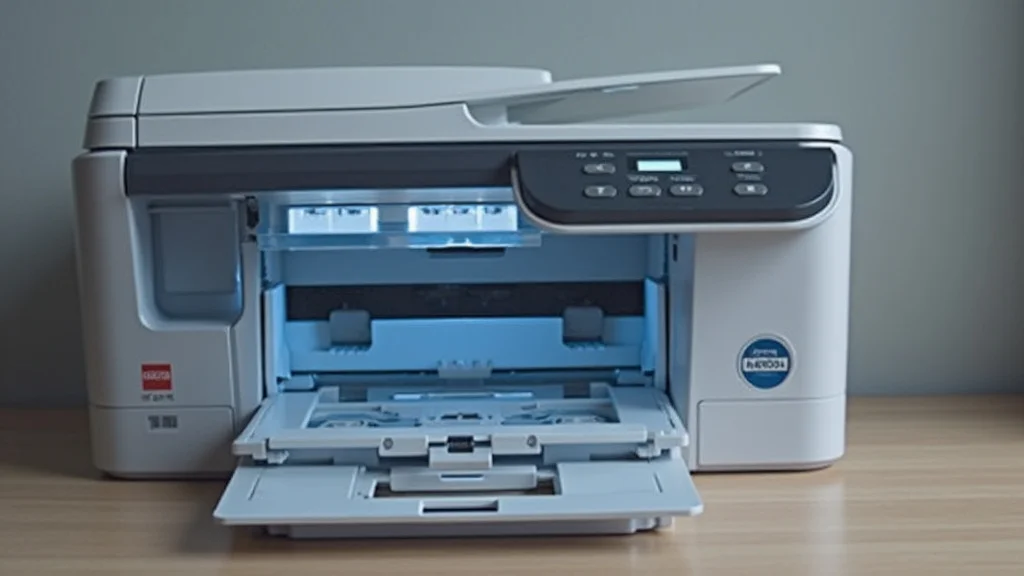
The first steps in the printing quest are to explore how printers actually function. Whether you’re working with a basic inkjet or a more advanced laser printer, there are core principles shared across many printing technologies. A good grasp of these principles is the first step toward getting high-quality prints. This section will break down the fundamental elements involved in the process, offering a clear vision of what occurs when you click that “print” button. This knowledge is important for all print users, no matter your experience level.
Inkjet Printing Unpacked
Inkjet printers are a popular choice for home and small office use because of their accessibility. They function by spraying tiny droplets of ink onto paper. These droplets are propelled through nozzles in the print head, forming the image or text that you see. The print head moves across the paper, layer by layer, depositing ink in specific patterns as guided by your computer. There are different types of inkjet technology like thermal inkjet and piezoelectric inkjet, but they all share this core process. The precision of the ink droplet placement is critical to the quality of the final print; this is how detail is captured.
-
Print Head Technology: Inkjet printers use either thermal or piezoelectric print heads. Thermal print heads heat the ink, causing it to vaporize and be ejected onto the paper. Piezoelectric print heads use a crystal that vibrates when an electric current is applied, physically pushing the ink out.
Both systems control the precision and speed of ink deposition, with modern models offering faster printing and improved quality. Each method has its pros and cons in terms of ink efficiency and print speed. However, they both aim to place ink droplets precisely to create the required image. The choice between them often impacts the printer’s overall cost and performance characteristics.
-
Ink Cartridges: Inkjet printers typically use cartridges that hold the ink. These cartridges usually come in a set of colors (cyan, magenta, yellow, and black, known as CMYK). Some printers include separate cartridges for each color, while others combine them into a single cartridge.
Ink quality is important to print output. High-quality inks are formulated to provide vibrant colors and sharper text. The type of ink used can also impact the longevity of the print, with some inks designed to be more fade-resistant than others. Replacements can get expensive, so many users choose to make their own choices based on printing volume and budget.
-
Print Resolution: Print resolution, measured in dots per inch (DPI), signifies how many ink dots a printer can place within an inch of the printed area. Higher DPI translates to a sharper image and finer detail, which is especially important for printing photos or other visual materials.
Printers typically offer different resolution settings, allowing you to choose between speed and quality. For example, documents can often be printed at a lower DPI to save ink and print faster. Photos or detailed graphics usually need higher DPI settings to show the detail of the original. The optimal setting depends on the needs of the printing job.
Laser Printing Explained
Laser printers are popular in offices and for high-volume printing. They use a laser beam to create an electrostatic image on a drum. Toner, which is a fine powder, is then attracted to the charged areas on the drum, and transferred to the paper. Finally, the paper passes through a fuser, which uses heat and pressure to bond the toner to the paper. This process is very efficient for text and produces high-quality black-and-white and color prints. The speed and quality of laser printers make them suitable for busy environments.
-
The Imaging Drum: The imaging drum is the core component of a laser printer. It is a cylinder coated with a photoreceptor material. The laser beam is directed at this drum to create an electrostatic image. This image attracts the toner particles.
The condition of the imaging drum can affect print quality. Over time, the drum can wear down or get damaged, leading to print defects like streaks or faded areas. The type of material used for the drum also affects its durability and performance. Regular maintenance or replacement is necessary to keep your laser printer working efficiently.
-
Toner Cartridges: Instead of ink cartridges, laser printers use toner cartridges. Toner is a fine powder made of plastic particles, pigments, and additives. The quality and type of toner affect the color accuracy, sharpness, and overall quality of the print.
Toner cartridges typically contain enough toner for hundreds or thousands of prints, depending on the volume. The cost of toner is an important factor to consider when evaluating a laser printer, especially for high-volume printing. Some users select compatible toner cartridges to save costs, but this can sometimes impact print quality.
-
The Fuser Unit: The fuser unit uses heat and pressure to bond the toner to the paper. It is a critical component in the laser printing process. It’s normally composed of a heated roller and a pressure roller.
When the paper with the toner image passes through the fuser, the heat melts the toner, and the pressure makes it stick to the paper. The fuser’s temperature is critical. Too low, and the toner won’t bond properly; too high, and the paper can get damaged. The fuser unit’s lifespan often dictates the printer’s overall durability.
Dot Matrix Printing: A Quick Look Back
While inkjet and laser printers dominate today’s market, dot matrix printers hold a specific niche, especially in specific industries where their unique features are important. These printers use a print head that strikes an ink-soaked ribbon to create characters and images. This is a very robust technology that excels in certain applications, such as printing multi-part forms. The noise and relatively slower speeds have limited their use in modern office settings.
-
The Print Head: The print head contains pins that strike an ink ribbon to make characters on the paper. The arrangement and number of pins influence the quality of the print. Higher-quality printers have a greater number of pins, producing sharper text and images.
The print head’s design influences the printer’s speed and reliability. Durability is a key feature of dot matrix printers, with print heads built to withstand extensive use. Replacing print heads is a routine maintenance task, although the frequency depends on usage and the type of paper.
-
Ink Ribbon: The ink ribbon is essential for dot matrix printers, providing the ink necessary to print. The ribbon is moved horizontally across the print head, getting hit by the pins, which leaves an imprint on the paper.
Ribbons come in many forms, with different levels of durability and print quality. The choice of ink ribbon can affect the clarity of the text and images produced. Regular replacement of ink ribbons is needed to maintain print quality. As the ribbon is struck repeatedly, the ink fades, which reduces print quality.
-
Paper Handling: Dot matrix printers frequently use continuous-form paper, which has holes along the edges that are engaged by the printer’s tractor feed system. This allows for precise paper alignment and facilitates printing of multi-part forms.
This system’s design makes it ideal for printing documents in a way that is hard to alter. The tractor feed system keeps the paper moving smoothly and reliably through the printer. It’s useful for applications such as invoices, receipts, and other documents where reliable, continuous printing is required.
Controlling Print Quality in Your Printing Quest
Achieving superior print quality depends on several factors, including the type of printer, ink or toner quality, and the resolution settings you use. There are also less obvious things to consider, such as paper selection and printer maintenance. This section examines the elements you can control to significantly improve your prints. Whether you’re looking for professional-grade photos or crisp text documents, understanding these details can help you get the best possible results. The right printing methods combined with a basic knowledge of printing will lead to high-quality results.
Understanding Print Resolution and DPI
Print resolution, usually measured in dots per inch (DPI), affects the sharpness and detail of your prints. Higher DPI settings lead to more dots of ink or toner being placed on a given area of paper, which means more detail and smoother gradations in the printed image. It is important to know how to select the right DPI setting for the type of document you are printing, balancing quality with print speed and ink use. The correct resolution is key to improving print quality.
-
DPI vs. PPI: DPI (dots per inch) is for print resolution; PPI (pixels per inch) applies to the resolution of an image file on a screen. For example, a 300 PPI image, when printed at 300 DPI, will offer a good balance of detail and quality.
PPI is determined by your digital image or source file, whereas DPI is what the printer puts out. Getting high print quality starts with a well-resolved image (PPI). Selecting the proper DPI settings during printing then determines the final result.
-
Choosing the Right DPI: Consider the type of material you’re printing when choosing DPI settings. For text documents, a lower DPI (like 300) might be enough. For photos, particularly those with a lot of detail, 600 or higher DPI will yield better results.
The printer’s capabilities also dictate the final DPI you can achieve. A printer with a lower maximum DPI will not produce results as detailed as a high-end printer, regardless of the setting you choose. Match your DPI setting to your project’s needs to achieve the desired output without wasting ink or time.
-
Testing and Adjusting: It is important to test different DPI settings to get the best outcome for your printer and your project. Print a test image or document with various DPI settings to find what produces the best result.
Test prints help you identify the right balance between quality, ink use, and print time. Keep a log of your test prints and settings. You can then refer to this to get the best result for future projects. This saves ink and increases your print efficiency.
The Impact of Paper Quality and Type
The kind of paper you use affects the final quality of your prints. Standard printer paper works well for everyday documents, but different types of paper like photo paper or cardstock are made for specific needs. Understanding the impact of different papers and how they interact with ink or toner is vital to getting the best output for your printing projects. The correct paper can make a big difference.
-
Paper Weight: Paper weight, measured in pounds (lbs) or grams per square meter (GSM), indicates the paper’s thickness. Heavier paper, like cardstock, is ideal for projects that require durability or a high-quality feel. Lighter paper, like standard printer paper, is fine for everyday documents.
The type of your printer influences the paper weight it can handle. Check the printer’s manual to ensure it supports the weight of the paper you are using. Too heavy, and you could cause a paper jam or damage the printer.
-
Paper Finish: The finish of the paper, whether matte, glossy, or satin, affects how the final print looks. Glossy paper enhances the brightness of colors and is great for photos. Matte paper gives a more subtle look and is useful for documents.
Consider the desired style when picking your paper finish. Glossy papers work very well for photos because they bring out the colors. Matte papers limit glare and are more appropriate for documents or artistic prints.
-
Paper Absorption: The paper’s ability to absorb ink also affects print quality. Specialty photo papers are made to absorb ink quickly and dry without smudging. Standard paper may allow ink to bleed, decreasing sharpness.
Make sure the paper you use is compatible with the type of ink or toner your printer uses. Inkjet printers require specific papers that prevent ink bleeding, while laser printers require paper rated for high heat. Selecting the proper paper will prevent print issues.
Color Management and Accuracy
Effective color management ensures that the colors printed match those on your screen. Color is a critical aspect, especially for photos and graphics. When you get a color print that does not reflect what you see on your screen, it can be frustrating. A grasp of color management can help you to get prints with accurate and vivid colors, which is a key part of the printing quest.
-
Color Profiles: Color profiles, such as sRGB and Adobe RGB, are color spaces used to define and control colors. They are essential for ensuring color accuracy across various devices (monitors, printers, etc.). Your printer driver’s color management options are often affected by the settings of these color profiles.
sRGB is standard for web use, while Adobe RGB is for professional-grade printing. Make sure your printer’s settings are aligned with the color profile of your digital image to avoid any color shifts. This process is important to get consistent colors.
-
Calibration: Calibrating your monitor is a critical step in color management. Calibration guarantees that what you see on your screen matches the colors the printer produces. Calibration devices measure your monitor’s colors and create a profile that you can use in your printing workflow.
Monitor calibration involves the use of specialized tools, but there are also options built into many operating systems. Proper calibration assures that your screen displays colors accurately. You will also get better results when the colors match what you want to achieve.
-
Printer Settings: Use the color settings in your printer driver to further refine color output. Most printer drivers offer options to adjust color intensity, contrast, and saturation. Fine-tuning these settings can help you achieve more accurate color output.
Different printers have different color correction capabilities. The key is to experiment with your printer’s color settings while considering color profiles and calibration, and then do test prints to confirm your settings. If the color output isn’t quite right, adjust and test again.
Navigating the Printing Quest: Troubleshooting Common Issues
Even with advanced printers, issues can arise. Understanding how to solve common printing problems can save time and frustration. From paper jams to poor print quality, this section equips you with troubleshooting skills to keep your printer running smoothly. Getting to know the steps to troubleshoot will get you back to the printing quest quickly when problems pop up.
Paper Jams and How to Resolve Them
Paper jams are a frustrating problem for printers. Paper jams can happen in a variety of ways, which is why it is critical to know how to resolve them quickly and safely. Regular maintenance and careful paper handling will reduce the frequency of paper jams, and help you get back to your printing.
-
Identify the Source: The first step is to locate the source of the paper jam. Open the printer’s access panels, and carefully inspect the paper path.
Check the paper tray, the rollers, and the fuser unit, if applicable. Take a flashlight to help you see, and identify where the paper has jammed.
-
Remove the Jammed Paper: Use both hands to carefully remove the paper. Pull gently and steadily. Avoid pulling with force, which could cause tearing or damage the printer components.
Some printers have specific levers or buttons you can use to help extract the paper. Refer to your printer’s manual for instructions. Remove any paper pieces and fragments.
-
Prevent Future Jams: There are actions you can take to prevent future paper jams. Use the right type of paper, and store it correctly. Ensure the paper tray isn’t overloaded, and keep the printer clean.
Avoid using damaged or wrinkled paper. Run regular maintenance, such as cleaning the rollers. Taking these measures will reduce the chances of paper jams.
Print Quality Issues and Fixes
Poor print quality is another frequent problem. It could be due to issues with ink, the printer itself, or settings. Identifying the root cause of these issues lets you take the needed steps to restore the print output. Troubleshooting the output quality is a vital part of the printing quest to maintain quality in your prints.
-
Faded Prints: Faded prints can indicate low ink or toner levels. Replace the ink or toner cartridge.
Check that the print settings are set correctly, especially the print density settings. If the problem continues after replacing the cartridge, there may be a problem with the print head or the drum unit.
-
Streaks or Smudges: Streaks or smudges might be caused by a dirty print head or drum. Perform the printer’s cleaning cycles to clear any debris.
Check for any smudges on the print head or the inside of the printer. Clean any visible smudges or debris. In laser printers, make sure the drum unit is clean.
-
Incorrect Colors: Color inaccuracies can result from printer settings, calibration, or the ink or toner itself. Make sure your printer settings align with the source file. Calibrate your monitor to ensure that what you see on the screen matches the print output.
If the issue continues, it could be a cartridge problem. Try replacing the color cartridges one at a time to identify the problem. You might have to reset your printer to default settings to address the issue.
Connectivity and Driver Problems
Another common source of problems involves connectivity issues between your printer and your computer or network. Problems with printer drivers, whether outdated or not properly installed, can make printing difficult. Correctly addressing these problems assures that your printer interacts with other devices correctly. Troubleshooting connectivity and driver issues is vital for the printing quest.
-
Checking Connections: Begin by verifying all physical connections. Make sure the USB cable is securely connected or that the printer is on the network correctly.
If it is a wireless printer, make sure it is connected to the same network as your computer. Test the connection by printing a test page. If you are having issues, try restarting both your printer and your computer.
-
Driver Updates: Outdated or faulty printer drivers often lead to printing issues. Visit the manufacturer’s website to download the latest driver.
When installing, follow the instructions. Uninstalling the old driver and restarting your computer before installing the new driver can sometimes resolve complex issues.
-
Network Printing Issues: If your printer is connected to a network, ensure that it is configured correctly. Verify that the printer’s IP address is properly set up.
Check the firewall settings, which can prevent printing across the network. If the problem continues, there might be problems with your network. Then contact your IT support or network administrator.
Efficient Printing: Saving Time and Resources
Being efficient in your printing process involves more than just hitting the “print” button. Implementing efficient techniques can save you time, ink, and paper. This helps reduce costs and minimizes environmental impact. These efficiency measures can help to optimize your printing quest and maintain a strong printing system.
Print Preview and Proofing
Print preview allows you to see how your document will look when it’s printed. Proofing involves reviewing the preview to check for problems before you print the document. This approach helps in reducing mistakes, which saves ink and paper. Making the effort to preview and proofread will ensure that your prints look good and also save on resources.
-
Using Print Preview: Always use the print preview feature. This allows you to check page layout, margins, and the overall look of your document before printing.
Look at how text and images are positioned. This can prevent unwanted surprises. Most word processing and image editing programs offer a print preview option.
-
Proofreading Before Printing: Review the document. Carefully check all text for spelling, grammar, and formatting errors.
Check the document’s consistency with your intended output. Proofreading eliminates print mistakes. This saves ink and reduces waste.
-
Correcting Errors: If you find issues during your print preview, go back to the original document. Make any changes. Reprint once the document has been fully updated.
This method prevents the waste that results from printing incorrect copies. Taking this time up front helps make sure your final prints are correct.
Optimizing Print Settings for Economy
Print settings play a key part in how much ink or toner, as well as paper, you use. Adjusting these settings smartly, such as by printing in draft mode, can help you save costs without impacting quality. Knowing how to change your printer settings helps control costs while you print and helps with the printing quest.
-
Draft Mode: Most printers have a draft mode or economy mode. This mode uses less ink and is best for drafts or documents where the highest quality is not critical.
Draft mode prints at a lower resolution. This can result in faster print speeds and lower ink usage. It is appropriate for quickly printing many documents.
-
Grayscale Printing: If you don’t need color, print in grayscale. This can significantly reduce the amount of color ink used, especially for documents containing images.
Check your printer settings. Select the grayscale or black-and-white option. This is great for printing documents. It will result in ink savings and reduced costs.
-
Double-Sided Printing: Many printers offer duplex or double-sided printing. This method automatically prints on both sides of the paper, saving paper.
This function helps in reducing the amount of paper used. Double-sided printing is especially useful for long documents, reports, and books. This is a very useful way to reduce costs.
Cost-Effective Printing Strategies
Cutting printing costs involves more than simply adjusting printer settings. A mix of tactics, from selecting the right supplies to buying ink in bulk, can result in significant savings over time. You can make the most of your resources while on your printing quest by adopting a smart approach to printing.
-
Buying in Bulk: Buying ink and toner in bulk, especially for high-volume printers, may lower the cost per print. Make sure you store the supplies correctly.
Bulk purchases are particularly useful for those who regularly print. It is important to keep the supplies in a place that is cool and dry. This helps to protect quality.
-
Using Compatible Cartridges: Compatible ink or toner cartridges are less expensive than the brand-name equivalents. Research the quality of these products.
The print quality should be comparable to brand-name cartridges. Choose reputable manufacturers. This can reduce printing costs.
-
Maintenance: Regular printer maintenance can help prevent issues that lead to ink waste or printing errors. Make sure your printer is working smoothly.
Make sure you clean your printer’s print heads regularly. Run the printer’s calibration functions. Regular maintenance will make your equipment last longer.
The Evolution of the Printing Quest: Modern Techniques
The printing world keeps changing, with innovations that increase what is achievable. Modern printing methods offer advanced features that let you get high-quality prints and meet specific demands. This segment covers these cutting-edge techniques, showing how far the printing quest has come.
3D Printing: Building Real Objects
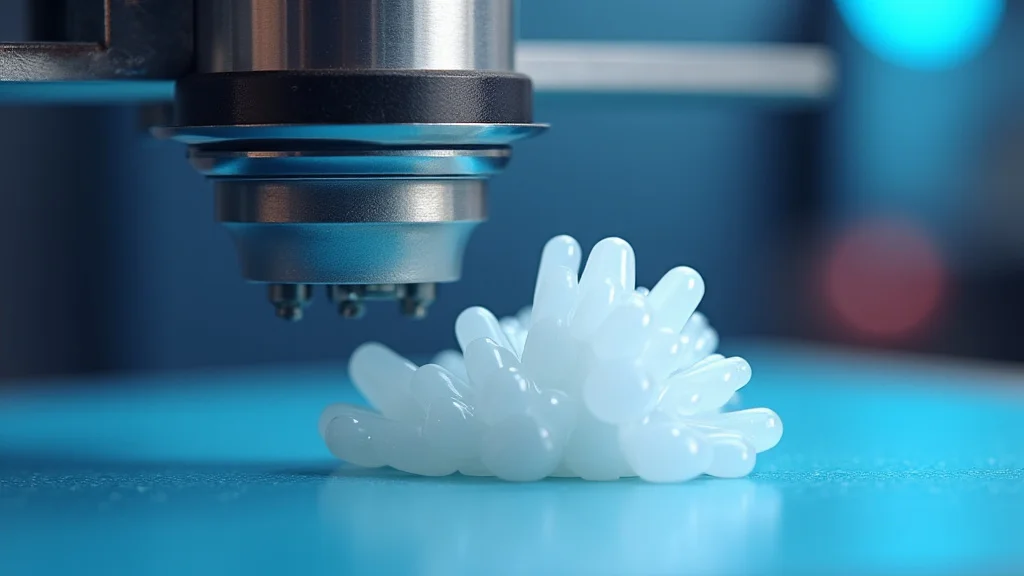
3D printing, also known as additive manufacturing, is revolutionizing production by creating three-dimensional objects layer by layer. This technology can make complex forms and objects, changing product design and manufacturing processes. It opens up opportunities for individuals and businesses to make customized parts, prototypes, and products.
-
How 3D Printing Works: 3D printing begins with a digital model, created with CAD software. The printer then lays down layers of materials, like plastic, metal, or resin, to build the object.
The materials are deposited on top of each other. This creates the three-dimensional form. This method lets manufacturers create complex geometric shapes and designs.
-
Applications of 3D Printing: 3D printing is widely used across various industries, from manufacturing to healthcare. It is utilized to build prototypes, customized medical implants, and complex models for architecture.
3D printing is also used for making customized products, which are impossible with traditional manufacturing methods. The possibilities are expanding.
-
Materials Used: Various materials are used in 3D printing, including plastics (ABS, PLA), metals, ceramics, and composites. The choice of material affects the object’s strength, flexibility, and appearance.
Selecting the right material is important. This choice depends on the end use of the printed item. Each material has its properties, which affects the final product.
Large-Format Printing: Making a Big Statement
Large-format printing offers a way to create prints on a larger scale. This method is used for banners, posters, signs, and other large visual elements. This technology helps to grab attention and display vibrant images and messages. The printing quest offers new chances to create visuals that can be viewed from a distance.
-
Wide Format Printers: Large format printers use advanced inkjet technology to print on wide rolls of paper, canvas, or other materials. These printers are made to produce prints that are wider than typical desktop printers.
They can handle a range of materials. They are made for high-quality, large-scale printing projects. They use inks designed to resist fading.
-
Applications: Large format printing is often used for creating outdoor advertising, which involves posters, billboards, and signage. It’s also used for indoor projects, such as wall murals and art prints.
These large prints create a visual impact. They are ideal for conveying messages or enhancing spaces.
-
Materials for Large-Format Printing: The most popular materials include paper, vinyl, canvas, and various fabrics. The choice of material affects the durability, appearance, and suitability of the final print.
Outdoor use demands water-resistant and UV-resistant materials. The selection depends on the specific requirements of the print.
Digital Printing: The Versatile Choice
Digital printing is a versatile and fast method of printing, which uses digital files to create the image or text on the paper. It skips the need for physical printing plates. This method is useful for a range of printing projects. This technology provides flexibility, efficiency, and a way to customize your printing quest.
-
How Digital Printing Works: The digital file goes directly to the printer. The printer then uses toner or ink to apply the image or text to the paper. This process is very fast and efficient.
Digital printing can produce single prints or long runs. It offers high quality and flexibility in terms of design.
-
Benefits of Digital Printing: Digital printing has many advantages, including fast turnaround times, customization, and cost-effectiveness for short runs. It is very appropriate for personalized items.
It cuts out the need to create printing plates. It has a low minimum order requirement. It is an excellent choice for a variety of printing needs.
-
Applications: Digital printing is widely used in many fields. It is appropriate for promotional materials, books, brochures, and personalized items. It is especially useful for custom projects.
Digital printing offers custom designs. It is ideal for various print jobs.
Common Myths Debunked
Myth 1: All Printers Are the Same
Many people think that all printers are the same, that they all produce the same quality and functionality. This isn’t true. Different printers use different technologies (inkjet, laser, dot matrix), and each of these varies in printing speed, quality, and cost-effectiveness, all of which influences how you can tackle your printing quest.
Myth 2: More DPI Always Means Better Quality
While higher DPI (dots per inch) generally equals higher detail, it’s not always the best way to determine print quality. The ideal DPI depends on the image type and the printer’s capabilities. Too high a DPI for a basic text document can simply waste ink without any noticeable improvement, and the printer model and paper type also have an effect.
Myth 3: Using Third-Party Ink Always Ruins Your Printer
This is a common concern. While using third-party ink or toner may void the printer’s warranty from the manufacturer, it doesn’t automatically cause harm. Using compatible cartridges from reliable brands can be a cost-effective choice. The main factor is to choose inks that meet quality standards.
Myth 4: Printers Are Only for Documents
This idea restricts the printer’s potential. Printers aren’t just for producing text. They can handle images, photos, and even 3D objects with advanced models. Printers have become a tool for creative expression, with expanded possibilities for the printing quest.
Myth 5: Printer Maintenance Is Optional
Many believe printers don’t need regular maintenance. This is wrong! Printers need care. This includes cleaning print heads, calibrating color, and resolving paper jams. Neglecting maintenance may cause print quality issues and shorten the printer’s life.
Frequently Asked Questions
Question: What’s the main difference between inkjet and laser printers?
Answer: Inkjet printers spray ink onto paper, making them great for photos and color prints. Laser printers use toner and a laser beam, which makes them efficient for documents and large print volumes.
Question: How do I choose the right paper for my printer?
Answer: Think about what you’re printing. Use standard paper for everyday documents, photo paper for photos, and cardstock for thicker prints. Always look at the printer’s specifications.
Question: How can I fix blurry prints?
Answer: Check your ink or toner levels, clean the print heads (inkjet) or drum (laser), and make sure you have the right resolution and paper settings for your project.
Question: What does DPI mean in printing?
Answer: DPI means “dots per inch.” It refers to the resolution of a print, or how many dots of ink or toner a printer can put on an inch of paper. Higher DPI means better detail.
Question: What can I do if my printer won’t connect to my Wi-Fi?
Answer: Restart your printer and router. Make sure the printer is connected to your Wi-Fi network. Update the printer drivers on your computer. If the problem continues, consult your printer’s manual or contact technical support.
Final Thoughts
You have now explored the comprehensive steps of the printing quest. From the nuts and bolts of how printers operate, to the methods to produce high-quality prints and troubleshoot frequent issues, you are prepared to deal with printing challenges. Using the correct DPI, paper, and color settings, you have the know-how to make your prints look their best. Remember to implement efficient strategies and modern techniques to save time and resources. As you venture further, remember to experiment and make changes according to your requirements. Embrace the journey of discovery, and you will become proficient at printing, achieving impressive and visually striking results in all your printing needs.