Remember that time you spent hours handwriting addresses on holiday cards? Or maybe you had a mountain of packages to ship, and each address had to be copied by hand? Frustrating, right? Well, that’s where the magic of printing mailing labels comes in. This guide will walk you through everything you need to know to create and print your own labels, saving you time and effort. You’ll learn the best methods, from using simple word processors to specialized software. By the end, you’ll be able to efficiently handle any mailing task. Get ready to streamline your mailing process and become a label-printing pro, improving your workflow and allowing you to focus on more important matters. Let’s get started!
Key Takeaways
- Learn the basics of printing mailing labels, covering various software options and printer setup.
- Discover different label formats and sizes to match your specific needs, like envelopes or packages.
- Master the art of creating address lists and importing them into label templates for easy printing.
- Find out how to troubleshoot common issues such as alignment problems or printing errors.
- Get tips on customizing your labels, including adding logos, graphics, and return addresses.
- Explore cost-effective ways to manage your label needs, including affordable label options.
Choosing the Right Software for Printing Mailing Labels
The first step in printing mailing labels is selecting the right software. Several options are available, from basic word processors to specialized label design programs. The ideal choice depends on your needs, the volume of labels you print, and your desired level of customization. Consider factors like the availability of pre-designed templates, ease of use, and compatibility with your printer. Some software offers more advanced features such as database integration for managing contacts and creating mail merges. Whether you are sending a few items or mass mailers, choosing the correct software is a crucial first step toward streamlining your mailing process and saving time.
Using Word Processors for Simple Labels
For basic label printing tasks, word processors like Microsoft Word or Google Docs are excellent choices. These programs usually come with built-in templates specifically designed for labels. You can create a simple address list, import it into the template, and print your labels. Word processors are often the easiest way to start if you only need to create labels for individual mailings or smaller batches. The simplicity ensures a quick start-up with less of a learning curve, saving you precious time. Word processors’ straightforwardness allows focus on the task at hand: printing labels.
-
Templates and Pre-set Formats
Word processors like Microsoft Word offer numerous pre-designed templates for different label sizes and formats. These templates are the foundation for any mailing label project. You can find templates that match standard label sheets from companies such as Avery. Templates provide a structure, allowing for quick creation. Once you select the desired template, it’s ready for you to input your addresses. This ease of use makes these programs user-friendly and time-efficient, allowing anyone to jump into label creation without advanced skills.
-
Address List Management
Word processors allow you to create and manage address lists directly within the document. You can easily type addresses into a table or create a list by separating each field with a comma or tab. You can then insert the address list into a label template using mail merge features. Mail merge allows you to link your address list to your template, so it automatically populates the labels with the correct addresses. This function significantly reduces the time it takes to create a mailing job.
-
Mail Merge Capabilities
The mail merge feature in word processors is a powerful tool for mass mailing. This feature helps you print labels in bulk, allowing you to quickly create an entire set of labels with minimal effort. You can connect to contact information from various sources, such as spreadsheets, databases, or address books. Mail merge automatically pulls the relevant data, ensuring each label is personalized with the correct address and details. This functionality is invaluable for businesses or anyone needing to send large numbers of mailings.
Specialized Label Design Software
For more complex label design and management, specialized label design software is the way to go. These programs offer advanced features like image integration, barcode generation, and database connectivity. If you frequently need to customize labels or manage large contact lists, dedicated software can save time and effort. Many such applications are designed to easily integrate with various printer types and label sizes. This is a must-have for professionals or businesses that depend on a smooth, efficient label-printing workflow. Label software is specifically designed to meet the unique needs of those regularly creating and printing labels.
-
Advanced Design Tools
Specialized label software includes many design tools, such as the ability to add and resize images, adjust text formatting, and insert custom graphics or logos. These design tools permit users to create visually appealing labels that reflect their brand identity. Some programs offer advanced text and layout features. This level of customization is essential for creating professional-looking labels, helping to improve the appearance of mailings. With these capabilities, you can turn a standard label into something visually interesting and attractive.
-
Database Integration
Most specialized software offers easy integration with databases, spreadsheets, and address books. This allows you to manage large contact lists and automatically import data for printing. You can quickly connect to your customer databases, CRM systems, or mailing lists, streamlining data imports. This integration ensures accuracy by minimizing manual data entry. Whether you need to send newsletters, invoices, or promotional materials, these functions help make sure that your labels have accurate, current data and can be automatically updated.
-
Barcode and QR Code Generation
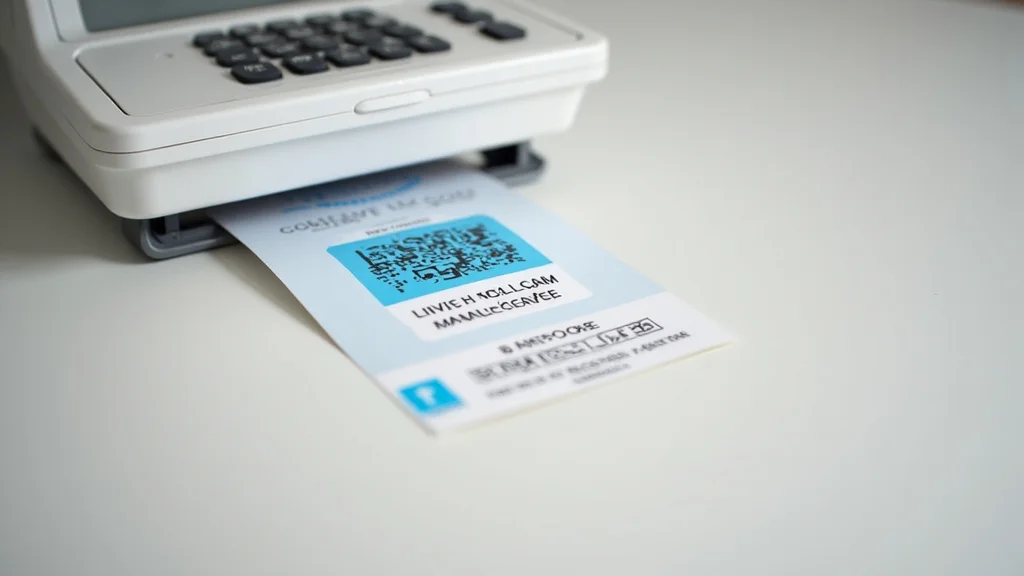
Many programs offer built-in barcode and QR code generators. These features are helpful for businesses that need to track packages, manage inventory, or facilitate shipping. You can generate barcodes or QR codes for specific products, shipping codes, or other related information. The ability to create these codes directly from the software eliminates the need for external tools, making the process more efficient. These tools enable the rapid creation of scannable codes. They are a must-have for anyone managing packages and inventory.
Choosing the Right Label Format and Size
The label size and format you select are important for a successful mailing. Several options are available, and the best choice depends on what you’re mailing. Standard sizes are ideal for envelopes, but larger formats may be better for packages. Considering the type of items you are mailing, your printer’s capabilities, and the amount of information that needs to fit is important. You should assess your mailing needs to ensure the labels you choose are appropriate for the job. Selecting the proper format will ensure your mailing is professional and runs smoothly.
Common Label Sizes and Their Uses
Several standard label sizes suit most mailing requirements. Knowing these will assist in finding the best fit for your job. Label sizes are often measured in inches or millimeters and are designed to fit various applications, from envelopes to large shipping boxes. Taking time to select the right size is important for both aesthetics and functionality. For instance, using the incorrect size could impact how well the label fits the item or how easily it reads. Consider the quantity of information required on each label, as this also affects size.
-
Address Labels (Avery 5160, 5161)
These are the most common label sizes, usually measuring 1 x 2 5/8 inches. They are widely used for envelopes, promotional mailings, and general correspondence. These labels are sold by most office supply stores, so they are readily available and affordable. The size is ideal because it’s large enough to display an entire address while leaving space on the envelope. The format provides a clean, professional look for any type of mailing. Their size helps improve readability and helps ensure the mail gets to its destination.
-
Shipping Labels (Avery 5163, 8163)
Shipping labels usually measure 4 x 6 inches and are designed for larger packages. This size is specifically designed to provide enough space for detailed shipping information, including the recipient’s address, the sender’s address, and barcode data. The 4 x 6-inch size is considered the industry standard for shipping labels. These labels often feature peel-and-stick backing for simple application to packages. They help shipping companies to rapidly process packages, making delivery faster and more reliable.
-
Return Address Labels
Return address labels are smaller labels, typically measuring 1 x 0.5 inches or similar. These are used to put your return address on envelopes, ensuring the mail is returned if it cannot be delivered. These are usually much smaller than the primary address label, providing a quick way to include your address without needing a full-sized address label. They are a simple, professional touch, making sure your mail looks polished. Return address labels are useful for a variety of purposes.
Considerations for Different Mailing Items
The items you’re mailing will affect the label you pick. The size, shape, and surface of the package directly affect which label format will work best. For a small envelope, a standard address label is the right choice. Large boxes, however, may need specialized shipping labels. Understanding the demands of various items is essential for making sure your labels are both practical and visually appealing. Consider the shape of your mail piece and how the label will affect its appearance. The goal is to choose a label that gives the impression that it suits the item.
-
Envelopes
For envelopes, standard address labels are generally best. These are designed to be easily applied and to fit well on standard-sized envelopes. Choose labels that fit the envelope’s size without covering too much of the surface. You can choose different styles and materials. For a more personalized look, you might choose labels that complement the envelope’s style. Properly applied address labels provide a polished, professional look, boosting your mailings’ overall appearance.
-
Packages
Packages usually need shipping labels. These labels have enough space for all the essential details, including the recipient’s address, your address, and any required tracking information. Make sure the label is big enough to be easily scanned by shipping services. Some labels are made to withstand the elements, so consider a water-resistant label if your package may be exposed to weather. Correctly affixed, well-designed shipping labels ensure that packages are easily tracked and delivered. Choosing the correct label is crucial for safe delivery.
-
Flat Mailers
For flat mailers, the choice of labels depends on the size and type of the mailer. You may want to use a standard address label or a larger shipping label, depending on the volume of information needed. Consider the design and look of the mailer and the location of the address. You can place the label in a way that compliments the design. Your label should offer clear readability and easy scanning. Selecting the right label for flat mailers gives them a polished, professional look.
Creating and Importing Address Lists
Creating and importing an address list is essential for mass mailing tasks. You can manage your contacts in a spreadsheet, database, or address book. This process helps you save time and prevent manual data entry. Address management ensures precision and reduces mistakes. Taking the time to build and import your contact lists enables you to streamline your mailing process. You can then quickly create batches of labels without errors. The process enables you to handle large mailings effectively and accurately.
Building an Address List in a Spreadsheet
Spreadsheets, such as Microsoft Excel or Google Sheets, are a great tool for building an address list. You can create columns for each piece of information, such as name, address, city, state, and zip code. This structured approach helps organize your contacts and makes it easy to add, delete, or update information. Spreadsheets also enable you to sort and filter your data, making it easier to manage large contact lists. Learning the steps for efficiently making and organizing an address list in a spreadsheet can save time and reduce errors in your label printing process. The structure of a spreadsheet makes it easy to import your data later.
-
Setting up Columns
Start by creating columns for each field in your address list. Use clear headings such as “Name,” “Street Address,” “City,” “State,” and “Zip Code.” Put each type of information into its own column for organization. Properly organizing columns will prevent data mix-ups during printing. Consistent column headings make the import process easier, speeding up the process. This meticulous method allows you to easily manage your data and import it into any program.
-
Entering Data
Fill each row with the corresponding information. Double-check all the information you enter for accuracy, as mistakes in your contact list will show on your labels. Keep your address entries consistent to make the process smoother, especially when importing the data. Once you have created your contacts list in the spreadsheet, it will be easy to import it into your desired software for printing mailing labels. Keeping your entries accurate and consistent will ensure your labels are correct.
-
Formatting and Saving
Format your spreadsheet to ensure that the data is easy to read. You can adjust column widths, add borders, or use different fonts to make the data more readable. Make sure your zip codes are formatted as text, so leading zeros are not cut off. Saving the document in a compatible format such as CSV (Comma Separated Values) or a database format such as XLSX makes importing the data into your software easy. This makes sure that your data stays intact when moving it from the spreadsheet to other apps, saving you time and avoiding data loss.
Importing Addresses Into Label Templates
Once you have created your address list, you can import it into your preferred software or label template. Most programs provide a straightforward import function, allowing you to connect your contact information with your labels. Your contacts are ready to be used in mail merges. You can import from a variety of file formats, including CSV, TXT, or Excel files. Successfully importing address lists into your software minimizes manual work, saving both time and money. This process helps you to efficiently produce large mailings. This also greatly reduces the risk of errors.
-
Using Mail Merge in Word Processors
Word processors use the mail merge feature to insert information into label templates. The steps vary depending on the word processor, but you’ll usually select “Mail Merge” and pick your address list file. You’ll then usually map each field from your address list (such as the name, address, city, state, and zip code) to the corresponding fields in your label template. The program will then insert the data from your list into each label. Mail merge gives you a way to personalize each label with ease.
-
Importing into Specialized Software
Specialized label software often has more advanced import tools. Typically, you upload your contact list directly and match the fields to the label template’s fields. Some software programs also allow you to preview your labels before printing. Some may also integrate with various databases and address book programs. These features provide a seamless way to bring your contact information into your label design, allowing you to quickly create and print labels. The interface is optimized to manage your contact information in the best way possible.
-
Troubleshooting Import Issues
Common issues with the import process include mismatched fields or incorrect formatting. If the fields don’t match, the data won’t print correctly on your labels. Double-check that all fields are in the correct place. Format your spreadsheet so that all the address details are organized and properly formatted. This will save you headaches. Make sure your address list is properly formatted before importing it. Testing your labels on a few sample sheets is always a good idea before sending out large mailings.
Troubleshooting Common Label Printing Problems
When printing mailing labels, you might encounter issues such as alignment problems, printing errors, or printer malfunctions. Knowing how to troubleshoot these problems can save you time and prevent wasted labels. From simple fixes, such as aligning your labels in the printer, to more complex solutions, this will help you get back to your projects without delay. Understanding how to handle these difficulties will enable you to efficiently create and print your labels. It reduces the stress of errors and ensures a smooth process.
Addressing Alignment Issues
Alignment problems are a common challenge when printing mailing labels. Misaligned labels make for an unprofessional look and require you to reprint the entire sheet. Fortunately, many solutions are available. You should calibrate your printer and make any necessary adjustments in your software. If you follow these suggestions, you can make sure that your labels print correctly. If you take the time to set up the printer, you can prevent repeated errors and wasted materials.
-
Printer Calibration
Some printers offer calibration settings to help align labels. Look for the alignment settings in your printer’s control panel or software. Most label sheets have alignment guides that can help determine where the paper will begin printing. Calibrating your printer ensures that the labels will feed through correctly, and the print job will line up precisely on each label. Use test sheets to make any required adjustments. Ensure that you have the correct label size selected in the printer settings. Check your printer’s instructions for steps on how to calibrate your printer.
-
Software Adjustments
Your label software also has features for adjusting the alignment of your labels. Check the settings for horizontal and vertical adjustments. These settings help fine-tune the printing position, ensuring that the text falls within the label boundaries. You can use these controls to shift the print position slightly to compensate for any misalignment. Test printing a sheet of labels after making adjustments. Continue adjusting until the text appears within the borders of each label. Correcting the alignment helps create more professional-looking labels.
-
Label Sheet Quality
The quality of your label sheets can affect alignment. Using high-quality label sheets that are designed for your printer can reduce misalignment issues. Cheap labels may have inconsistent sizes or adhesive issues, causing problems during printing. Storing label sheets properly will also help prevent alignment problems. Store your label sheets in a cool, dry place and protect them from humidity or direct sunlight. If you use a good label sheet, your printing process will work more efficiently.
Dealing With Printing Errors
Printing errors can range from a missing print to a printer jam or incorrect font sizes. Understanding how to resolve these is important for efficiency and reducing waste. These tips will address many of the common problems. By following these steps, you can fix printer problems and quickly get back to printing labels.
-
Printer Jams
Printer jams can occur when the paper or labels get stuck inside the printer. First, turn off the printer and carefully remove any jammed paper or labels. If the labels are jammed, gently try to remove them without tearing the sheet. Check for any small pieces of label that might remain inside the printer. Then, review the printer’s instructions for specific steps to clear the jam. Once you have cleared the jam, turn the printer back on and try printing again.
-
Incorrect Printing
Incorrect printouts include the wrong labels, incorrect placement, or missing information. Make sure you select the correct label size and type in your printer settings. Carefully check that your address list is properly linked to your label template. Preview your print job before you start to make sure the labels are displaying correctly. If text or graphics are cut off, adjust your margins or font sizes. If you are using a new label sheet type, do a test print.
-
Ink/Toner Problems
Ink or toner issues can cause faded or incomplete prints. If you have an inkjet printer, check the ink levels and replace any empty ink cartridges. If you use a laser printer, check the toner levels. If the ink is low, the print quality will reduce. You may need to clean or replace the print heads or toner cartridges. You may also need to try a new print cartridge. If the issue is still there, you may need to service your printer. Making sure that the printer has enough ink or toner will improve the appearance of the labels.
Customizing and Printing Your Mailing Labels
Customizing your printing mailing labels can improve their appearance and make them more professional. Your labels can reflect your brand and add a personal touch. Adding design elements and customizing the format allows for a label that is both informative and visually appealing. Learning how to add these elements gives you full control of the look of your labels. These steps will let you create labels that make a positive first impression.
Adding Logos, Graphics, and Personal Touches
Incorporating logos, graphics, and personal touches can transform a basic label into a marketing tool. Adding these design elements can help your labels look more professional and visually appealing. Whether you are creating labels for your business or for personal use, customizing the look of your labels can make a positive impact. These changes can increase your mailing’s overall appearance. This can make them more engaging and memorable. The changes make the labels more appealing.
-
Adding a Logo
Add a logo to your labels. Most label software permits you to upload images and resize them. You can use your business logo to reinforce your brand identity. Place the logo in a prominent spot, such as the top left or top right corner of the label. The logo helps create brand recognition. The visual element will help make your mailing stand out. Make sure your logo is sharp and clear at the size you need.
-
Including Graphics
Consider incorporating other graphics, such as a small icon, illustration, or a simple design element. Graphics can help to visually break up the text. You can add these features to suit your mail’s purpose. Graphics can convey important information or make the label more visually appealing. The software will allow you to import and modify these graphics. The right graphics can improve the overall look and feel of the labels.
-
Customizing Fonts and Colors
Customize fonts and colors to match your brand’s style. Use fonts that are clear and easy to read. Experiment with colors that compliment your logo and design. You can modify your label templates in the software, adjusting the fonts and colors to your liking. Keep it simple; readability should be the primary objective. Consistency with your brand’s visual identity will help make your labels look professional and make your mailings more memorable. This is a subtle yet crucial design choice.
Printing a Test Sheet and Making Adjustments
Test printing a sheet of labels before you print a large batch is a critical step in the process. This helps you to identify and fix issues before you waste your labels. This step ensures that your print job meets your standards. Testing also ensures you have the correct alignment and format. These steps will help you fine-tune your settings to ensure a good result. Test prints save time, prevent waste, and ensure a professional result. The test ensures the final result will be right.
-
Printing a Test Sheet
Before mass-printing your labels, print one test sheet. Select the “print preview” option in your software or the printer. Print one sheet of labels to check how the labels will print. This way, you can detect any errors before you print a large number of labels. Inspect the test sheet for print quality, alignment issues, and text placement. Make sure you use a clean test sheet to identify the issues easily.
-
Checking Alignment
Check the alignment on your test print. If the text or graphics are misaligned, adjust the printer settings or software settings. Small adjustments can resolve misalignment problems. You can adjust horizontal and vertical alignment, or adjust margins. After each adjustment, print another test sheet to make sure the alignment is perfect. Checking the alignment ensures the printouts are accurate and legible. Taking the time to adjust the alignment will save you time and materials.
-
Making Final Adjustments
Once you are happy with the results of your test print, make any final adjustments. Make sure all the elements are properly aligned and that the print quality is satisfactory. Double-check all settings and ensure that the right label size has been selected. Then, you’re ready to print your entire batch of labels. Do this step with confidence. Your mailing labels will be precise and professional-looking. With a little work, the result is well worth the effort.
Common Myths Debunked
Myth 1: You need expensive software to print high-quality labels.
Reality: While specialized label design software can provide more features, word processors and free online tools are often more than adequate for basic to intermediate label printing. You can easily create professional-looking labels with the right templates and a bit of creativity.
Myth 2: All label sheets are created equal.
Reality: Label quality varies considerably. Some labels may not adhere properly, jam the printer, or fade quickly. Choosing high-quality label sheets from trusted brands ensures better print results, smoother printing, and a professional look.
Myth 3: Printing labels is always time-consuming and difficult.
Reality: With the right software, printer settings, and preparation, printing labels can be a quick and easy process. Learning to use features like mail merge and pre-designed templates can streamline your workflow and save you time on every project.
Myth 4: It’s impossible to customize labels without design experience.
Reality: Many software programs offer pre-designed templates and user-friendly customization options. You can easily add logos, graphics, and custom fonts to your labels, even if you have no design experience. Simple adjustments can drastically improve the look of your labels.
Myth 5: You must print labels directly from your address book.
Reality: Address lists can be imported from many places. You can use spreadsheets, databases, or even text files. These options give you control over formatting and content. The options permit you to get the results that you want. By importing address lists, you will save time while reducing errors.
Frequently Asked Questions
Question: Can I print labels from my phone?
Answer: Yes, you can. Many mobile apps and printers now support wireless printing, allowing you to create and print labels directly from your smartphone or tablet. Be sure to check your printer’s compatibility.
Question: What if my labels keep getting misaligned?
Answer: Check your printer settings, calibrate your printer, and ensure you’re using the correct label size in your software. Also, make sure your labels are properly loaded into the printer’s tray. Try printing a test sheet first.
Question: What’s the best way to store my label sheets?
Answer: Store your label sheets in a cool, dry place, away from direct sunlight and humidity. This will help prevent the labels from curling or the adhesive from losing its stickiness.
Question: How can I save money on labels?
Answer: Buy labels in bulk, compare prices from different suppliers, and use generic label brands. Also, consider using templates to utilize space effectively and avoid wasting labels. Consider using printable sheets over pre-printed designs.
Question: What is a mail merge and why is it useful?
Answer: Mail merge automatically combines your contact list with a label template, printing personalized labels for each contact. It’s useful for mass mailings because it significantly reduces the time and effort required to print labels.
Final Thoughts
Printing mailing labels, once a tedious task, has become efficient and accessible thanks to technology. This process, when mastered, simplifies handling address lists, designing labels, and printing in bulk. Using this guide, you should now know how to choose the right software and label sizes, import your contacts, and troubleshoot any printing issues. You are prepared to personalize your labels and make them visually appealing. By applying these methods, you can boost the efficiency of your mailing jobs, reduce waste, and attain expert results. Take the knowledge you’ve gained and begin printing your labels; your time and effort will be worth it. Make every mailing count.