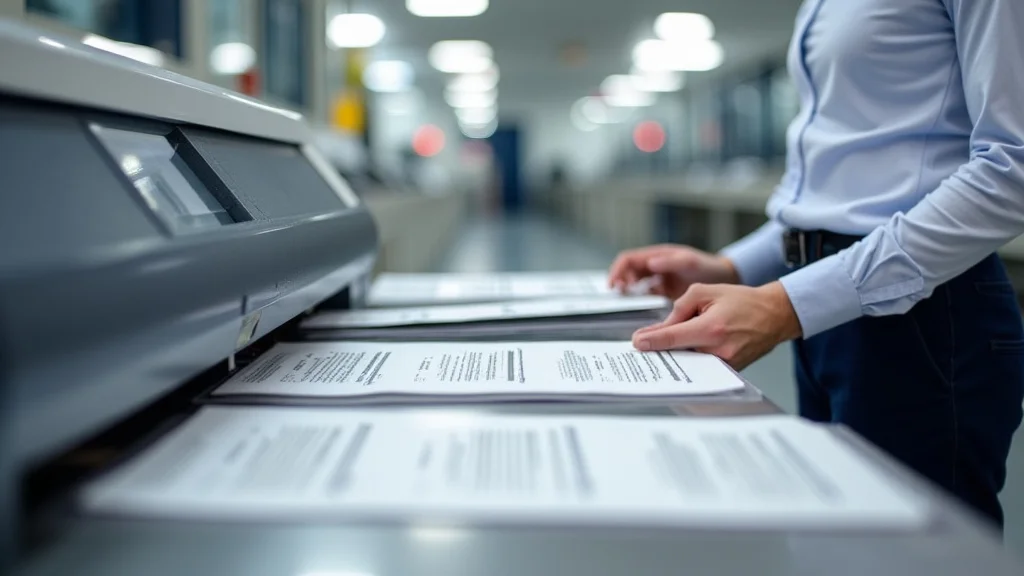
Remember that frustrating moment when you hit “print,” only to realize the document wasn’t quite ready? You scrambled, wishing you could pause the process or even get a sneak peek at what was coming out. This guide explores everything you need to know about printing in progress. You’ll learn how it works, what to expect, and how to manage those print jobs more effectively. This will help you become a printing pro and minimize paper waste. By the end, you’ll feel confident handling any printing in progress situation, saving you time and headaches.
Key Takeaways
- Discover the different stages involved when a document is sent for printing.
- Learn how to monitor and control your print jobs on various devices.
- Understand potential problems that can occur during the printing process.
- Explore tips for troubleshooting and resolving printing errors.
- Become familiar with various printing settings and how they impact results.
- Get insights into different printer types and their printing specifics.
Understanding the Printing Process
The journey of a document from your computer to a physical copy involves several key stages. From the moment you click “print” to the final page rolling out of the printer, a complex set of steps ensures your words and images are accurately reproduced. This is often an overlooked process, but when things go wrong, it quickly becomes the center of attention. Exploring these stages helps you grasp the bigger picture, so you can manage your printing tasks more efficiently. This section will walk you through the essential steps involved in printing in progress.
The Print Queue and Spooling
When you initiate a print job, the document doesn’t immediately start printing. Instead, it first goes to the print queue, a waiting area. Here, the document, along with its print settings, is temporarily stored. This queue handles multiple print jobs and arranges them in the order they were submitted. This allows you to manage print jobs, such as pausing or canceling them. Spooling is the process where the computer creates a temporary file containing information about the print job. This file is sent to the printer, allowing your computer to handle other tasks while the printer works.
- Print Queue Functionality: The print queue allows users to see which documents are waiting to print and their status, as well as cancel jobs or change their order.
- Spooling Purpose: Spooling offloads the printing task from your computer’s main processing unit (CPU), freeing up resources for other applications and ensuring a smoother workflow.
- Temporary File Creation: Before printing, the computer creates a spool file. The spool file contains the print job information, including the document content and print settings, which is sent to the printer.
For example, imagine you are printing a large report while also browsing the internet. Without the print queue, your computer would have to dedicate significant resources to the printer, potentially slowing down your browsing. With the print queue and spooling, your computer can handle both tasks simultaneously, maintaining a seamless user experience. The print queue is like a traffic controller, managing several documents waiting to be printed. Spooling is like having a helper take on the heavy lifting of preparing the document for print.
Data Transmission and Printer Processing
Once the print job reaches the front of the queue, it’s time for data transmission. This is when the spool file is sent from your computer to the printer. The printer then interprets the data and prepares it for the physical printing process. The type of connection used (USB, Wi-Fi, Ethernet) affects the speed of data transmission. The printer’s internal processor converts the digital information into instructions that control how the print heads move and where the toner or ink is applied. This stage is where your document goes from digital to physical.
- Connection Types: USB provides a direct connection, typically ideal for a single device. Wi-Fi allows for wireless printing and greater freedom of placement. Ethernet provides a wired network connection that is faster and more stable than Wi-Fi.
- Printer Internal Processor: The printer’s processor is responsible for decoding the print data, translating it into signals for the printer’s mechanical components.
- Data Interpretation: The printer interprets the instructions to determine exactly where to apply ink or toner, managing this placement with precision.
The efficiency of the printer’s processor, along with the data connection, directly impacts how quickly the printing process is completed. Consider a scenario: a busy office where several computers send print jobs to a single printer. If the printer’s processor is slow, the print queue will quickly fill up, leading to delays. In contrast, a printer with a fast processor and a stable network connection can handle print jobs efficiently, reducing downtime. It is comparable to having a team of workers efficiently converting ideas into a physical product.
Physical Printing and Output
The final step in printing in progress is the physical printing and output. The printer applies ink or toner to the paper based on the instructions received from the processor. In inkjet printers, tiny nozzles spray ink onto the paper, while laser printers use a toner and heat process to fuse the image. This stage involves the printer’s physical mechanisms, such as the paper feed, print head, and fuser unit (in laser printers). The output is the printed document, ready for you to use.
- Inkjet Printing Process: Inkjet printers use small nozzles to spray liquid ink onto the paper. The print head moves back and forth, building the image line by line.
- Laser Printing Process: Laser printers use a laser beam to create an electrostatic image on a drum. Toner is attracted to the drum and then transferred to the paper, which is then heated to permanently bond the image.
- Output Quality: The quality of the output depends on factors like printer resolution (measured in DPI – dots per inch), the quality of the ink or toner, and the type of paper.
Think about a graphic design project where high-resolution images and precise color reproduction are important. An inkjet printer might be favored for its ability to produce rich color gradients and detailed images. Conversely, for high-volume text documents, a laser printer is often preferred due to its speed and cost-effectiveness. The printer’s settings and capabilities significantly influence the final result. In short, this process is how those digital designs are brought to life on paper.
Monitoring and Controlling Your Print Jobs
You do not need to sit and watch a printer to know what is happening. Knowing how to monitor and control print jobs gives you the power to manage your printing more efficiently. This can reduce paper waste and time. This ability allows you to make corrections during the printing in progress, improving overall productivity. Whether you’re using a home printer or a shared office machine, the ability to monitor and control your prints is a must-have skill.
Accessing the Print Queue
The print queue is where you can view, manage, and even adjust the print jobs you’ve sent to the printer. The steps to access the print queue vary slightly depending on your operating system, but the core functionality remains the same. Once you locate the print queue, you’ll see a list of documents awaiting printing, their current status, and sometimes details about the user who submitted the job. You can easily prioritize or cancel documents through this interface.
- Windows: You can access the print queue by going to the ‘Devices and Printers’ section in the Control Panel or Settings. Right-clicking on the printer icon and selecting ‘See what’s printing’ will open the queue.
- macOS: Open the ‘System Preferences,’ then go to ‘Printers & Scanners.’ Select your printer, and you should see an ‘Open Print Queue’ or similar option.
- Mobile Devices: Many mobile devices have integrated printing options. You typically access these through the document or app you’re printing from and then tap the print icon.
Consider a situation where you accidentally sent a large document to print, but you realize that you need to make urgent changes. By accessing the print queue, you can pause or cancel the print job, saving both time and paper. You can then make the necessary adjustments and resubmit the corrected document. For shared printers in an office setting, monitoring the print queue helps ensure everyone’s print jobs get handled fairly and efficiently. That is like having a control center for your print projects.
Pausing, Canceling, and Prioritizing
Within the print queue, you have several options for managing your print jobs. Pausing allows you to temporarily stop a print job, perhaps to load more paper or address a different issue. Canceling is useful if you realize you made an error in the document or the print settings. Prioritizing allows you to change the order in which documents print, useful when some items are more urgent than others. These controls give you flexibility when printing.
- Pausing a Print Job: Pausing is useful when the printer is out of paper, or you need to make adjustments. Simply select the print job in the queue and click ‘Pause.’
- Canceling a Print Job: Canceling removes the job from the print queue. Select the job and click ‘Cancel’ if you decide you do not want to print it.
- Prioritizing Documents: In some operating systems, you can adjust the order of the print queue. This is useful in shared office settings.
Imagine you’re running a small business, and you need to print a series of invoices and a last-minute contract. By prioritizing the contract, you ensure that the more time-sensitive document is printed first. If the printer runs out of paper during the invoice printing, you can pause the job, add the paper, and then resume. With these controls, printing becomes a dynamic task rather than a passive one. These are the tools that allow you to take charge and direct your printing.
Understanding Print Job Status
When you look at the print queue, you’ll see the status of each print job. These statuses provide real-time information about the printing in progress. You’ll see “printing,” “paused,” “error,” or “waiting.” Grasping these statuses helps you respond to any problems that may appear during the printing procedure. Knowing the status of your print jobs keeps you aware of your printing projects.
- “Printing”: This status means the document is actively being printed.
- “Paused”: The print job is temporarily stopped. Check for things like the printer running out of paper or an internal error.
- “Error”: This status means something is preventing the document from printing. Check for paper jams, ink cartridge issues, or communication problems.
- “Waiting”: The print job is in the queue, waiting its turn to print. This can happen if another job is printing, or the printer is busy.
For example, if a job status shows “error,” you know that you need to take action. You might need to troubleshoot a paper jam or replace an empty ink cartridge. If the status is “waiting,” you’ll know that the job is queued and will print once the printer is free. Being able to read the status saves you from wasting time wondering why your documents aren’t printing. It’s like having a dashboard displaying everything about the printing process.
Troubleshooting Common Printing Problems
Printing is not always a smooth process. Problems can pop up during any stage. Knowing how to troubleshoot and fix these issues can save you time, money, and frustration. From paper jams to connectivity issues, addressing printing problems helps you stay on track. Learning the usual problems and their solutions is a helpful skill. By troubleshooting, you can keep your printing workflow smooth.
Paper Jams and Feed Errors
Paper jams are a regular problem. They happen when the paper gets stuck inside the printer. These jams can occur because of crumpled paper, incorrect paper type, or mechanical problems. When a paper jam happens, the printer usually stops automatically, showing an error message. It’s essential to clear the jam carefully. Not following the right steps could damage the printer. Preventing jams involves using the proper paper, loading it correctly, and not overloading the paper tray.
- Clearing a Paper Jam: Turn off the printer and unplug it. Carefully open the printer’s access panels and remove any visible jammed paper. Follow the printer’s instructions for removing paper, as some models have special procedures.
- Paper Type: Ensure the paper type matches your printer’s requirements. Using the wrong paper can lead to jams and poor print quality.
- Paper Loading: Always load the paper correctly into the tray, and do not overload it.
In a real-life situation, imagine you are preparing for an important presentation, and the printer gets jammed. Knowing how to clear the jam quickly prevents you from running late. If you are having constant issues with paper jams, check the paper type and ensure it matches the printer’s specifications. Always keep the paper tray in good condition, and replace it if needed. By taking these steps, you can avoid this printing problem.
Connectivity Issues
Connectivity issues can halt printing in progress, stopping you from getting the physical document. These problems can involve the connection between your computer and the printer. Issues can happen when the printer is not correctly connected or if the network is down. The printer may show an error message. It may not print at all. Troubleshooting starts with checking the physical connections, such as the USB cable, and ensuring the printer is on the same network as your computer. If using a network printer, check the network’s status to make sure it is working correctly. You might also need to reinstall printer drivers.
- Checking Physical Connections: Make sure the USB cable is securely plugged into both the computer and the printer.
- Network Connections: Verify that the printer is connected to your local network. Check the printer’s IP address.
- Printer Drivers: Outdated or corrupted printer drivers can cause connectivity issues. Reinstalling or updating the drivers can resolve the problem.
For example, you are working on a deadline and you cannot print. You have already checked the print queue and print settings, but nothing is working. The most common fix is to double-check all the connections to the printer. Try a different USB port on your computer, or restart the printer. Updating the drivers is also a good approach. By doing these simple steps, you can fix the issue quickly.
Print Quality Problems
Print quality problems, like smudged text, faded colors, and streaks, can lead to frustration. These issues can result from various things, including low ink or toner levels, incorrect print settings, or dirty print heads. You can improve print quality by starting with the basics. Check your ink levels. Clean the print heads. Make sure you are using the best settings for the document. Problems with print quality can prevent you from receiving the proper output.
- Ink or Toner Levels: Check the ink or toner levels in your printer. Replace cartridges that are low or empty.
- Print Head Cleaning: Most printers have a print head cleaning function. Use this to clear any clogs.
- Print Settings: Check the print settings to ensure they are appropriate for the document. Check the resolution and color settings.
Consider a situation where you are printing important photographs, and they come out with streaks or faded colors. The first step is to check your ink levels. If the ink is low, replace the cartridge. If the issue continues, run the print head cleaning cycle. If none of these steps work, it may be time to consult the printer’s manual or seek professional assistance. It is essential to ensure that your prints look their best.
Advanced Printing Settings and Options
Beyond the basics, your printer offers advanced options that influence the final result. Settings like resolution, color management, and duplex printing can dramatically affect your printed documents. Learning these options allows you to fine-tune your prints and achieve the results you want. By exploring these options, you’ll be able to get the best prints possible.
Resolution and Print Quality
Resolution, measured in dots per inch (DPI), determines the clarity and detail of your prints. Higher DPI settings mean more dots per inch, which results in sharper images and text. However, higher resolution also means longer printing times and more ink or toner usage. It is essential to select the right resolution for the type of document you are printing. For basic text documents, a lower resolution is usually adequate. For photographs and images, a higher resolution is better.
- DPI Explained: DPI is a measure of the density of dots that the printer places on paper. A higher DPI provides more detail and clearer prints.
- Resolution Settings: Most printers offer different resolution settings, such as draft, normal, and high. Choose the appropriate setting depending on your document’s needs.
- Trade-offs: Higher resolutions consume more ink or toner. Balancing resolution and print quality helps you make the most of your resources.
Imagine you are printing high-quality marketing materials with lots of images. A high resolution (e.g., 600 DPI or higher) is essential for sharp images and text. For personal documents, a lower resolution may be enough. Choosing the correct resolution will ensure your prints look their best. Experiment with the different options.
Color Management and Calibration
Color management settings control how your printer reproduces colors. These settings ensure that the colors in your prints match the colors you see on your screen. Color calibration can fine-tune your printer to give the best color results. Incorrect color management can cause colors to be distorted or off. Printers use color profiles and color calibration to try to match what is on the computer with what is printed. By calibrating your printer, you can ensure that colors are accurate and consistent across your prints.
- Color Profiles: Color profiles describe how your printer reproduces colors. These profiles can often be adjusted within your printer settings.
- Calibration Importance: Calibrating your printer ensures that your prints display colors accurately.
- Color Matching: Proper color matching is crucial for professional documents, such as graphic designs and photographs.
Consider a photographer who needs to print their work. Proper color management is critical to make sure the images match the original artwork. Without color calibration, the prints could come out looking dull or with the wrong colors. Calibrating the printer will provide consistent and accurate results. This is useful for professional quality prints.
Duplex Printing and Other Features
Duplex printing, or two-sided printing, prints on both sides of the paper, saving paper and reducing waste. Most printers have duplex printing. You can enable it through your printer settings. Other useful options include borderless printing, which lets you print without borders, and booklet printing, which lets you create folded booklets. Using these features helps you save resources. Understanding these features can improve your workflow.
- Duplex Printing Benefits: Duplex printing is excellent for saving paper and reducing the bulk of documents.
- Borderless Printing: Borderless printing is great for printing photos and graphics, giving them a more professional look.
- Booklet Printing: Booklet printing simplifies the production of folded booklets and documents.
If you’re writing a long report, using duplex printing will reduce paper use. When you are printing photos, borderless printing will allow you to make full-page prints. For school projects or other documents, booklet printing can make it easier to fold them. Being aware of and using these tools makes your printing more practical.
Printing with Different Printer Types
Different printer types each have pros and cons. Inkjet printers are good for high-quality photos. Laser printers are useful for high-volume text documents. Knowing the strengths of each printer can help you choose the best option. Knowing the different types of printers and their features will help you pick the right one.
Inkjet Printers: Advantages and Disadvantages
Inkjet printers use ink cartridges to spray tiny droplets of ink onto the paper. These printers are great for high-quality photos and detailed images. Inkjet printers can produce rich colors and smooth gradients. However, inkjet printers can be slow for large print jobs, and the ink cartridges can be costly. Inkjet printers may also be prone to clogging if not used often. Consider your needs and usage. Choose the printer that works best for your needs.
- Print Quality: Inkjet printers excel at producing high-quality photos and images with detailed colors.
- Speed: Inkjet printers can be slow for larger print runs. They are often better for smaller print jobs.
- Cost: Ink cartridges can be expensive. Inkjet printers may have a higher cost per page.
Imagine you’re a photographer who wants to print photographs at home. An inkjet printer is a perfect option. The rich colors and details will make your photos look great. If you need to print a large amount of documents, a different type of printer may be better. Choosing the right printer will make your projects look the best.
Laser Printers: Advantages and Disadvantages
Laser printers use a laser to create an image on a drum, then use toner to transfer the image onto the paper. Laser printers are known for their speed and efficiency. They are ideal for high-volume text documents. Laser printers produce sharp text and can handle many pages quickly. However, laser printers can be more expensive. They also may not be the best choice for photos, as they can have issues with color gradients. Choose a printer that will meet your needs. Consider your printing needs.
- Speed: Laser printers are usually faster than inkjet printers, making them great for office use.
- Cost: Toner cartridges are usually more affordable than ink cartridges. Laser printers are useful for large print jobs.
- Print Quality: Laser printers excel at text documents. Inkjet printers are usually better for photos.
Picture a busy office that needs to print a lot of paperwork. A laser printer is a great choice. It can quickly handle documents. The cost-per-page is often lower than inkjet printers. If the office needs to print high-quality photos, an inkjet printer may be better. Consider your needs and pick the right option for you.
Other Printer Types and Technologies
Besides inkjet and laser printers, other types can be useful. These include all-in-one printers, which include print, scan, and copy functions. There are also specialized printers like thermal printers for receipts or label printers for different jobs. These printers are built for certain types of printing. If you need to copy or scan, an all-in-one printer is a good choice. For printing receipts, a thermal printer is better. Choosing the right type helps with your needs. Consider your daily work.
- All-in-One Printers: These printers combine print, scan, and copy functions into one device, perfect for a home or small office.
- Thermal Printers: Thermal printers use heat to transfer images onto paper. These are useful for receipts and labels.
- Specialized Printers: Wide-format printers print large posters. 3D printers create three-dimensional objects.
Imagine you run a small retail store that needs to print receipts. A thermal printer is ideal because it creates reliable receipts quickly. If you need to copy or scan documents, an all-in-one printer is a more versatile option. Considering your daily needs will help you pick the right printer.
Common Myths Debunked
There are some false ideas about the printing in progress. Separating fact from fiction can help you print efficiently. You will have a better experience if you understand the common myths. Knowing these myths allows you to make more informed choices.
Myth 1: Higher DPI Always Means Better Print Quality
While a higher DPI (dots per inch) generally leads to a sharper image, it’s not always better. For basic text documents, a lower DPI setting is often perfectly adequate, and it conserves resources. It is essential to choose the DPI setting that suits the document and its purpose. High DPI is useful for more complex designs.
Myth 2: All Printers Are the Same
Printers are not all the same. Different types of printers are made for different purposes. Inkjet printers excel at photo printing. Laser printers are great for documents. Understanding the strengths of each printer can help you choose the best one for your needs.
Myth 3: Always Use the Highest Quality Paper
While high-quality paper can improve the final result, it is not always needed. The type of document you are printing matters. You may only need basic paper for most documents. For photos and important documents, high-quality paper may be best.
Myth 4: Printers Are Only Used for Text Documents
Printers are used for a variety of tasks. You can print photos, graphics, and documents. Different types of printers can handle these tasks effectively. Using the right printer for the job ensures you get the best outcome.
Myth 5: You Must Always Use the Manufacturer’s Ink
Using the original ink cartridges from the printer’s manufacturer can be helpful. However, compatible or remanufactured cartridges are available. These may be more affordable. Be sure to check reviews and ensure the third-party cartridges are of high quality to protect your printer.
Frequently Asked Questions
Question: What does ‘spooling’ mean in printing?
Answer: Spooling is the process where your computer creates a temporary file containing information about the print job. This allows your computer to handle other tasks while the printer works.
Question: How do I cancel a print job?
Answer: You can cancel a print job through the print queue. In Windows, go to ‘Devices and Printers,’ right-click your printer, and select ‘See what’s printing.’ Select your print job and click ‘Cancel.’ On macOS, open ‘Printers & Scanners’ in System Preferences, select your printer, and open the print queue to cancel.
Question: What should I do if my printer is not printing?
Answer: First, check the printer’s power and connection to your computer. Verify the printer has paper and ink or toner. Check the print queue for any error messages or paused jobs. If the problem persists, try restarting the printer and your computer.
Question: Why is my print quality poor?
Answer: Low ink or toner levels, dirty print heads, or incorrect print settings can lead to poor print quality. Check your ink or toner cartridges. Clean the print heads using your printer’s maintenance tools. Ensure your print settings are correct for the type of document you are printing.
Question: What is duplex printing?
Answer: Duplex printing is a feature that allows you to print on both sides of the paper. This reduces paper usage and is usually enabled through your printer’s settings.
Final Thoughts
Understanding how printing in progress works can significantly enhance your workflow. By exploring the different stages, from the print queue to the final output, you gain control over your printing tasks. This knowledge is especially useful when things do not go as expected. Learning how to monitor and control print jobs and troubleshoot common problems empowers you to address issues. Moreover, discovering the features of different printers and understanding advanced settings allows you to customize your prints to meet any project’s requirements. Armed with these skills, you can handle any printing project with confidence, regardless of its size or complexity. When you take charge, your printing projects will become more efficient and stress-free.