Picture this: you’re working on a school project, or perhaps a family photo album, and the printing edge is off. That slight white border around your carefully designed document? It’s frustrating, right? This post explores the ins and outs of printing edge, helping you master document design. You’ll gain the knowledge to confidently print projects without those annoying borders, ensuring professional-looking results every time. This knowledge will save you time and frustration, helping you produce visually stunning work while avoiding common printing issues.
Key Takeaways
- Learn what printing edge is and why it matters for your projects.
- Discover how to adjust print settings to achieve borderless prints.
- Explore different printing techniques and technologies related to the edge.
- Find solutions to common printing edge problems and how to fix them.
- Understand file formats and their impact on print results.
Understanding the Basics of Printing Edge
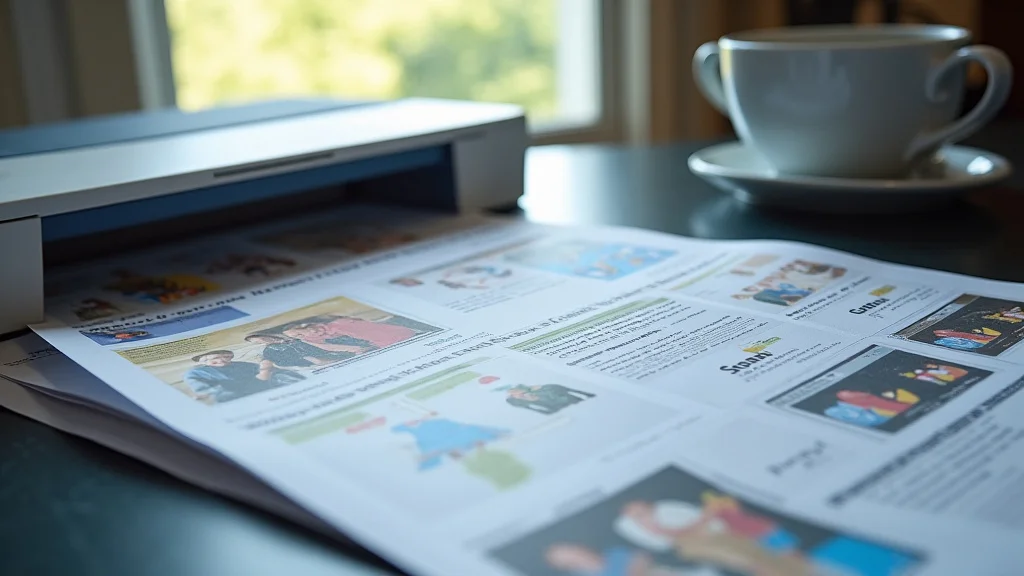
The term “printing edge” refers to the outermost boundary of a printed document, and how the content interacts with the physical edges of the paper. Think of it like this: your printer can only reach so far on the paper. The area close to the edges is where things get tricky, because the printer may not be able to apply ink right to the very edge. That’s why you sometimes see a white border.
The concept of printing edge is essential for anyone who creates documents and images, whether for personal use, professional work, or academic projects. It influences the visual appeal of the final product. Getting it right ensures that the design is displayed as intended. Correcting it will give projects a clean and polished appearance.
What is Printing Edge?
The printing edge is the visual boundary where the ink meets the paper’s physical limit. It can be a simple white space or a border, or even the ink edge of a borderless print. This edge is directly affected by the design, the printer, and the paper used. Printers may have limitations, resulting in a margin. The design also must be prepared to handle these limitations.
- Margin: The area around the printed content left blank by the printer. This depends on printer capabilities and settings.
- Borderless Printing: A setting that allows you to print without borders, where the ink extends to the edge of the paper.
- Bleed: An extra area beyond the intended print size. This ensures that the ink reaches the edge.
Understanding these different aspects is key to achieving the desired outcome for any project. You’ll want to be familiar with the options available on your printer to choose what’s best for your design.
Why is Printing Edge Important?
A well-defined printing edge ensures the final printed piece looks its best. If the printing edge isn’t handled correctly, the result can be a design that looks unprofessional and unfinished. Think of a flyer with a white border that cuts into the image or a photo with a missing edge. The impact on the project can be severe.
- Visual Appeal: A good edge enhances the look of the printed document.
- Professionalism: Clean edges make your work look polished.
- Design Integrity: A correct printing edge preserves the integrity of your design.
- Avoidance of Errors: Correcting these mistakes prevents issues like unwanted borders.
Considering the printing edge in the design phase is essential for a professional and visually appealing final product. Ignoring these factors can lead to unexpected results and frustration.
Achieving Borderless Printing
Borderless printing is a method where the image or document extends to the edge of the paper without any white margins. This is often the ideal setup for photographs, graphics, or any design that is meant to fill the entire page. Achieving this requires specific settings in the printer’s configuration.
Printers use various strategies to make borderless printing possible. They may slightly enlarge the image during printing so the edges run off the paper. This process needs a little extra paper in the design. It’s a matter of choosing the correct settings. It involves a bit of trial and error to get it right. Knowing the steps makes it an easy process.
Printer Settings for Borderless Printing
Most printers offer a borderless printing setting. Access this feature through the printer’s control panel or the software settings on your computer. You’ll likely find a dedicated option that says ‘Borderless’ or something similar. This activates the function.
- Printer Driver: The software that controls how your computer communicates with the printer.
- Paper Size: Ensure the paper size selected matches the actual size in the printer.
- Image/Document Scaling: The printer might slightly adjust the image size to cover the entire page.
- Print Preview: Always use the print preview to see how your document will look before printing.
Carefully going through these steps ensures borderless printing results. Remember to adjust your settings based on the type of image or document you are printing. Experimenting with different settings will help you learn the optimal configuration for your printer.
Design Considerations for Borderless Printing
While borderless printing is appealing, there are a few important considerations for the design phase. Designers should consider a bleed for their graphics. A bleed is the area that extends beyond the edge of the finished print. This allows for slight variations in the printing process. When the image reaches the edge, it helps ensure that the image goes all the way to the edge.
- Bleed Area: Add extra design elements beyond the page edges.
- Safe Zone: Keep key elements away from the edge to avoid being cut off.
- Resolution: High-resolution images and graphics work best.
- Color Profile: Ensure the color profile is set correctly to ensure accurate color reproduction.
By keeping these factors in mind, you can achieve results. It’s essential to plan. Doing so guarantees that your borderless prints appear just as you intend them to.
Printing Techniques and Technologies
Various printing technologies affect the way the printing edge looks. Different printers, from inkjet to laser, each have unique capabilities. These technologies impact not only the quality of the print but also how well borderless printing can be achieved. Each technique has its pros and cons in terms of edge quality and overall output.
The method you choose should depend on the type of document. Some technologies are better for color and photos. Other techniques are better suited for text or high-volume printing. The type of paper, the design, and the printer all play a role in the outcome.
Inkjet vs. Laser Printers
Inkjet and laser printers each use different methods to place ink or toner on the page. Inkjet printers spray liquid ink onto the paper, allowing for detailed images and a wide range of colors. Laser printers use toner and heat to fuse the image onto the paper, which is ideal for text and high-volume print jobs.
- Inkjet Printers: Offer high-resolution prints, making them ideal for photos and graphics. They can produce excellent color results, but can be slower.
- Laser Printers: Are generally faster and more efficient, making them suitable for business documents and text-heavy prints. They typically give sharp text quality.
- Borderless Printing Capabilities: Both inkjet and laser printers have borderless options. Inkjet printers often excel in this area due to their ability to spray the ink right to the edge.
The choice between inkjet and laser depends on your needs. For photos and graphics, the inkjet is often the best choice. For everyday text documents, a laser printer provides a reliable and cost-effective solution.
Specialized Printing Technologies
Beyond inkjet and laser, several specialized printing technologies exist. These methods can deliver unique results or cater to specific printing needs. These techniques, like dye-sublimation or large-format printing, all deal with the printing edge in specific ways. Each one offers different options for edge management and finishing.
- Dye-Sublimation: Used mainly for photo printing and printing on specific materials like clothing. It creates high-quality, durable prints.
- Large-Format Printing: Used for posters, banners, and other large projects. This method has a specialized edge-handling that needs careful consideration.
- Thermal Printing: Used in thermal receipt printers, with results where the edge is a key feature.
These advanced methods offer various solutions. Consider them when you require high-quality output or unique materials. Each method requires specific settings and design considerations to ensure the best results.
Troubleshooting Printing Edge Problems
Even with the right settings and design, problems can occur. Common issues include unwanted white borders, ink smudging, or inaccurate edge placement. The good news is that most of these problems can be fixed with troubleshooting. Often, these problems have a simple fix, so you don’t need to stress.
The first step is always to double-check the settings. Another option is to review the design to see if any aspects are causing the problem. You can usually find a resolution after a bit of investigation. The solutions vary depending on the problem.
Common Problems and Solutions
Several issues can disrupt the printing edge, leading to frustrating results. Identifying the problem will help resolve the issue. Troubleshooting often involves checking the settings and reviewing the design.
- Unwanted White Borders: Double-check the printer settings to ensure that the borderless printing option is selected and the paper size is correct.
- Ink Smudging: Adjust the print quality settings or use different paper. This can also indicate issues with the print heads.
- Inaccurate Edge Placement: Verify the bleed settings in your design software.
- Color Variations: Review the color profile in your design program. Ensure the printer settings align with the profile.
By methodically checking these items, you can identify and solve printing edge problems, resulting in better prints.
Edge Problems: Real-Life Examples and Solutions
- Scenario: A photographer prints a landscape photo and a white border appears.
Solution: The photographer should select borderless printing in the printer settings and ensure that the paper size matches the photo.
- Scenario: A business prints a flyer, but the colors are off and the edges are inconsistent.
Solution: The business should check the color profile in the design file. They should also perform a nozzle check on the printer to see if the print heads are clean.
Solving these issues involves a combination of careful observation and methodical troubleshooting. With the right approach, most printing issues can be fixed.
File Formats and Their Impact
The type of file you use for printing plays a key role in how well the printing edge appears. Different file formats have their strengths and weaknesses. Some formats are better suited for photographs, and others are more effective for text-based documents. The correct choice can avoid common issues, such as image quality loss or incorrect edge handling.
The format can also influence other factors, like color accuracy or compatibility with different printers. Understanding the impact of different file formats lets you choose the best option for your projects. Doing so can guarantee that your design looks as you intend.
Raster vs. Vector Graphics
Raster and vector graphics differ significantly in how they store image data. Raster graphics are composed of pixels, which can lead to quality loss when scaled up. Vector graphics use mathematical equations to define shapes, ensuring that they can be scaled without losing quality. This impacts the print result.
- Raster Graphics: Images based on pixels. Good for photographs, but can appear blurry when scaled up.
- Vector Graphics: Use mathematical equations to define shapes. Best for logos and illustrations that need to be scaled without loss of quality.
- File Formats: Common raster formats include JPEG and PNG. Vector formats include PDF and SVG.
When working with raster files, ensure they are high resolution. Vector formats are ideal for designs. Both methods are important, with the best choice depending on the project.
Optimizing Files for Printing Edge
To prepare files for printing, it is critical to know your printer’s capabilities. Understanding the paper you’re using is also essential. Before sending any design to print, there are other items that need attention.
- Resolution: Choose a high-resolution.
- Color Mode: Use CMYK for color printing.
- Bleed Area: Add a bleed to files that require edge-to-edge printing.
- File Format: Select the correct file format.
By following these steps, you can prevent many common printing problems and ensure that your final product looks its best.
Common Myths Debunked
Myth 1: Borderless printing always uses more ink.
Answer: Not always. While borderless printing may require a bit more ink to cover the additional surface area, it doesn’t always translate to higher ink consumption. The amount depends on the image or the design.
Myth 2: Any printer can perform borderless printing.
Answer: This is false. Not all printers have the capability. Some printers, particularly older models, may lack the technology required for borderless printing.
Myth 3: Increasing resolution always improves print quality.
Answer: While high resolution is essential, it’s not the only factor. The type of graphics, file format, printer settings, and paper quality also have an effect on the final product.
Myth 4: Bleed is only needed for professional printing.
Answer: Bleed can be important for any project with edge-to-edge content. For home printing, it helps to ensure that your colors and images reach the very edge of the paper.
Myth 5: It’s impossible to fix printing errors.
Answer: It is often possible. By troubleshooting and making adjustments, many printing problems can be corrected. Solutions often include reviewing printer settings and design files.
Frequently Asked Questions
Question: Can I print borderless photos on any type of paper?
Answer: Not necessarily. Borderless printing is often restricted to certain paper types that are compatible with the printer’s settings.
Question: What’s the difference between margin and offset?
Answer: A margin is the area around the print, and the offset is the shift of print position from the edge of a paper.
Question: Why do my colors look different when printed?
Answer: The colors may look different because of the color profile differences and the printer settings.
Question: How can I prevent paper jams when doing borderless printing?
Answer: Use the correct paper for borderless printing. You should also ensure that the printer’s paper tray is loaded correctly.
Question: How do I choose the right file format for the project?
Answer: Select a file format that suits the project, either raster or vector, and optimize the file settings.
Final Thoughts
Mastering the printing edge is critical for producing professional prints, whether for your personal projects or your business. Taking the time to explore different printer settings, such as borderless, and design considerations like bleeds, is key to excellent output. Remember that the design and the printer go hand-in-hand. Understanding the printer, the options it provides, and the impact of file formats are all key to successful outcomes.
The next time you prepare to print, don’t be afraid to experiment with settings. Review your file format. Check your design. With a little practice and patience, you’ll be printing stunning, edge-to-edge designs in no time. You can produce prints that represent your designs the way you want them. You have everything you need to begin!