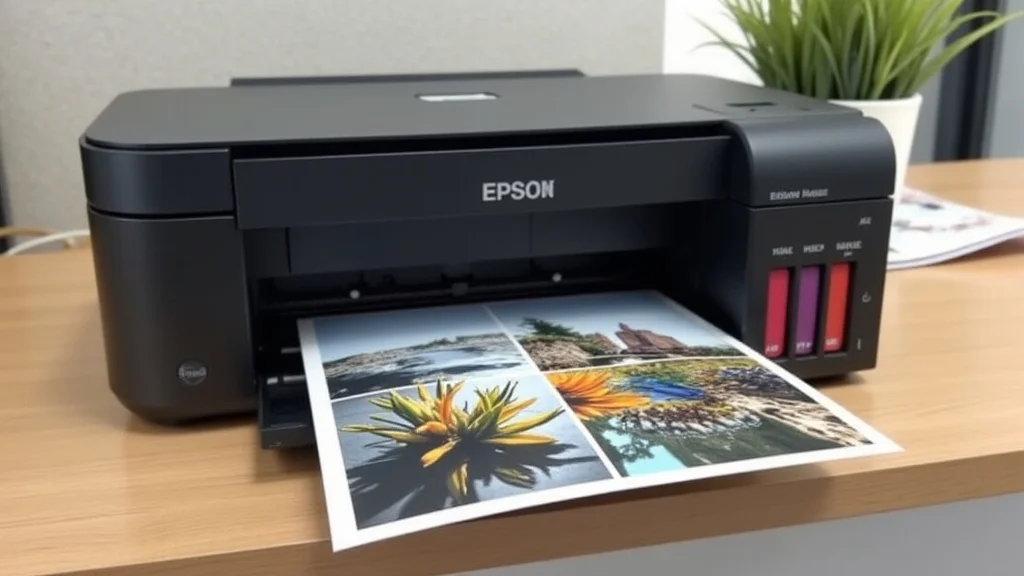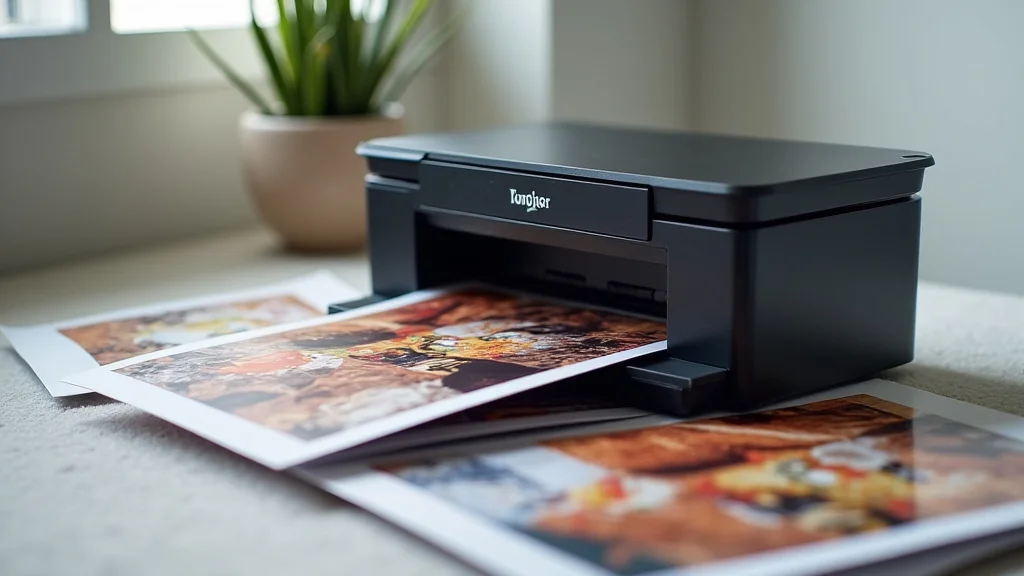
Remember that amazing vacation photo you took? That perfect sunset, the candid shot of your family laughing? You want to hold that moment in your hands, right? But the digital format often keeps these memories trapped on a screen. Printing digital camera images allows you to cherish those moments physically, creating tangible reminders of your experiences. This guide will walk you through everything you need to know about getting the best prints. You’ll explore the best practices to turn your digital photos into stunning prints, and how to choose the right tools for the job. By the end, you will have a clear idea on how to get the most from printing digital camera photos.
Key Takeaways
- Learn the crucial factors when preparing your digital photos for printing.
- Discover the best printing methods for different types of images.
- Understand the essential hardware, like printers and papers, needed for great prints.
- Find out how to choose the right photo paper for various images.
- Explore important file formats and resolution settings for optimal print quality.
- Get tips on common printing mistakes and how to avoid them.
Getting Ready to Print: Pre-Print Preparation
Before you even think about hitting the “print” button, the quality of your final print heavily depends on how you prepare your digital image. This involves several critical steps that can significantly impact the outcome, ensuring you achieve the best possible results. These steps might seem like extra work, but they are a worthwhile investment in creating prints you’ll be proud to display.
File Format and Resolution
The file format and resolution are the foundational elements of any print project. Choosing the correct settings at this stage dictates the detail, sharpness, and overall quality of your final print. Incorrect settings can lead to blurry, pixelated, or poorly detailed prints, regardless of the printer or photo paper you use. It is a critical foundation for successful printing digital camera pictures. The right settings ensure your memories look as good on paper as they did on the camera screen.
- Understanding Resolution (DPI and PPI): DPI (dots per inch) applies to printers, dictating how many ink dots are placed in an inch. PPI (pixels per inch) refers to the image’s resolution, the number of pixels within an inch. For quality prints, aim for at least 300 PPI.
- Choosing the Right File Format: TIFF and JPEG are the most popular choices. TIFF is a lossless format, preserving all the original image data, making it the best option for archival prints or editing. JPEG is a lossy format, compressing the image data to reduce file size. For most purposes, save JPEGs at the highest quality setting.
- Resizing Your It is better to resize images before printing. This can improve the final result. Consider the final print size you want and ensure your image has enough pixels to achieve the desired resolution, otherwise, it may become blurry.
Many people confuse DPI and PPI. DPI relates to the printer’s output, while PPI concerns the image itself. An image at 300 PPI is generally suitable for excellent prints, ensuring details are crisp and clear.
TIFF files preserve all image data, ideal for important pictures. JPEG formats use compression, trading file size for some quality loss. While JPEGs can be good, TIFF offers better quality, which is beneficial when you are printing digital camera images.
Resizing an image before printing helps you match the photo size to the printing paper. This step prevents the picture from becoming distorted or pixelated during the printing process. Proper resizing can avoid unnecessary issues.
Color Management
Color management ensures your prints accurately represent the colors in your digital image. This process involves calibrating your monitor, using color profiles, and managing color spaces to get the most accurate color reproduction. This step is often overlooked but is important for getting color-accurate results from your printing digital camera.
- Calibrating Your Monitor: Use a color calibrator to ensure your monitor accurately displays colors. This creates a profile that describes how your display shows colors, which the printer uses to match what you see on the screen.
- Choosing Color Spaces (sRGB, Adobe RGB): sRGB is the most common color space, suitable for most printers and widely compatible. Adobe RGB offers a broader color gamut, which is useful for images with vibrant colors, but it requires a printer that supports this space.
- Using Color Profiles: Many printers come with ICC (International Color Consortium) profiles, which tell the printer how to print with specific paper types. These profiles adjust the color output to get accurate results.
Monitor calibration is vital. It eliminates color discrepancies. Using a color calibrator guarantees a consistent representation of colors between your display and the prints.
sRGB is suitable for many situations. Adobe RGB provides a wider color range for images with richer colors. Choosing the correct color space is important when printing digital camera images.
Use ICC profiles to match colors. These profiles adjust the printing for different papers. This ensures color accuracy and details.
Image Editing for Print
Post-processing your images before printing can significantly enhance the final result. Minor adjustments can correct imperfections, enhance colors, and optimize the image for print. Editing is a crucial step in preparing photos to get the best from printing digital camera pictures.
- Adjusting Brightness and Contrast: Print results often differ from what you see on your screen. Adjusting brightness and contrast ensures your image doesn’t appear too dark or too washed out.
- Sharpening Your Images: Sharpening can enhance the details in your image, making it appear crisper. However, be careful not to over-sharpen, as it can create unwanted artifacts.
- Fixing Imperfections (Dust, Scratches): Use image editing software to remove dust spots, scratches, or any other imperfections that may detract from the overall image quality.
Adjust brightness and contrast to match print results. Often, prints appear darker than on-screen. Simple adjustments can get the final result.
Sharpen your images to improve detail. Be careful not to go overboard, as excessive sharpening can introduce issues. Proper sharpening enhances the image.
Clean your images before printing. Dust and scratches can be noticeable in prints. These adjustments ensure your pictures look as good as possible.
Choosing the Right Printer and Paper
The printer and paper you use significantly impact the outcome when printing digital camera images. It is not just about having a printer; it’s about choosing the correct type of printer and the right paper to complement your images. The combination affects the color accuracy, detail, and overall quality of the print.
Printer Types
Various printer technologies exist, each with its strengths and weaknesses. Choosing the correct printer type depends on your needs, from simple photos to professional art prints. Knowing these differences will ensure you select a printer that best meets your requirements.
- Inkjet Printers: Inkjet printers spray tiny ink droplets onto the paper. They are versatile, capable of printing high-quality photos. They support a variety of paper types and sizes.
- Laser Printers: Laser printers use a laser to create an electrostatic image on a drum, which attracts toner particles. They are known for speed and efficiency, making them a good option for high-volume printing. Laser printers typically aren’t the best choice for photos, as their output quality is less than inkjet.
- Dye-Sublimation Printers: These printers use heat to transfer dye onto paper. They are compact, often used for instant prints, offering vibrant, durable prints, but they have limited paper choices.
Inkjet printers are very adaptable. They provide great color accuracy and detail for photos. The cost of ink and paper can vary, making them suitable for casual users.
Laser printers are good for fast, black-and-white printing. The output quality isn’t ideal for pictures, so they aren’t the best choice when you are printing digital camera images.
Dye-sublimation printers provide durable prints. This is a very good choice for quick print jobs, but with fewer paper choices, it is less adaptable for certain projects.
Paper Types
The type of paper you select impacts the look and feel of your prints. Different types of photo paper have unique qualities. Knowing these can help you select the ideal paper to enhance your images. Choosing the right paper is a must when you are printing digital camera photos.
- Glossy Paper: Glossy paper has a shiny surface, enhancing color vibrancy and contrast. It is a good choice for photos with lots of colors. Fingerprints and glare can be an issue.
- Semi-Gloss/Satin Paper: Semi-gloss or satin paper offers a balance between glossy and matte. It has a slight sheen that reduces glare. It’s suitable for various photos, providing detail and depth.
- Matte Paper: Matte paper has a non-reflective surface. It’s great for images you want to view from different angles without glare. It has a classic look. Colors can appear slightly less vibrant than on glossy paper.
- Metallic Paper: Metallic paper contains metallic particles that give prints a unique shimmer. It’s useful for photos with dramatic colors and effects.
Glossy paper makes colors pop, good for photos with lots of colors. The shiny finish can lead to glare, and fingerprints can show up. Handle glossy prints with care.
Semi-gloss paper strikes a balance. It reduces glare. It enhances images without overpowering them. It’s a great choice for many pictures.
Matte paper offers a classic appearance. The non-reflective surface is easy to view from various angles. The colors may be slightly softer, which is a key consideration when you are printing digital camera pictures.
Metallic paper adds a unique shine to prints. This paper is good for images with high contrast and colors.
Printer Resolution and Ink
Printer resolution and the type of ink your printer uses are essential to achieve great-looking prints. These elements work together to create detailed, vibrant images. Careful consideration of these features ensures your prints reach their full potential.
- Resolution (DPI): Printer resolution is measured in DPI (dots per inch). Higher DPI generally results in more detailed prints, with more ink dots packed into each inch. For photo printing, look for printers with at least 1200 DPI or higher.
- Ink Types: Inkjet printers use dye-based or pigment-based inks. Dye-based inks are known for vibrant colors. Pigment-based inks offer better longevity. They resist fading and water damage.
- Ink Cartridges (Number of Colors): The number of ink cartridges affects color accuracy and range. Printers with more cartridges (e.g., six to twelve colors) can produce a greater range of colors and smoother tonal transitions.
Higher DPI gives more details. It produces smooth gradients. Choose printers with at least 1200 DPI for high-quality photos. This will result in better prints when printing digital camera images.
Dye-based inks offer brilliant colors. Pigment-based inks give improved longevity and water resistance. Pigment-based ink is the better option for archiving pictures.
More ink cartridges improve color. They result in more accurate colors. They are useful for pictures that require precise color reproduction. They make the process of printing digital camera pictures better.
Common Mistakes and How to Avoid Them
Even with careful preparation and the right equipment, issues can arise. Understanding common pitfalls and how to avoid them can help you get more from your photo prints. Avoiding these mistakes ensures you create prints that match your vision, preserving the quality of your images.
Incorrect Settings
Selecting the wrong settings can ruin the quality of your prints. Mistakes in settings can lead to blurry, distorted, or poorly colored pictures. Addressing these issues can get great-looking prints.
- Choosing the Wrong Paper Type: Selecting the incorrect paper type for your image can cause color problems and ruin detail. Always match the paper type to your image.
- Low Resolution Printing: Printing an image at a resolution that is too low can lead to pixelation and loss of detail. Ensure your image resolution is adequate for the print size.
- Incorrect Color Profile: Using the wrong color profile can result in color inaccuracies. Ensure you’ve selected the correct ICC profile for your printer and paper.
Choose the correct paper. The paper type can impact the final look. Read about what the papers do and then pick the best option for you.
Always check your image resolution. Low resolution causes blurry prints. Make certain your image has enough pixels for the paper.
Always select the correct color profile. Wrong color profiles cause inaccurate colors. Match the profile to your printer and paper.
Hardware and Software Issues
Problems with your printer, computer, or software can also affect the quality of your prints. Addressing these issues can ensure your hardware and software are set up correctly.
- Printer Head Clogging: A clogged printer head can result in streaky or missing colors. Clean your printer heads regularly. This process makes the process of printing digital camera pictures much better.
- Outdated Drivers and Software: Outdated drivers or software can cause errors and compatibility issues. Update your printer drivers and software regularly.
- Incorrect Image Size: Printing an image at the wrong size, such as enlarging it too much, can result in poor print quality. Always make sure your image has enough resolution for the desired print size.
Keep your printer heads clean. Clogged heads cause lines and color issues. Run a cleaning cycle when needed.
Update your software and drivers. Outdated versions may cause problems. Keep your printer software current.
Resize images correctly before printing. Enlarging an image too much causes it to become pixelated. Proper resizing prevents problems.
Post-Processing and Editing Errors
Editing mistakes can affect the appearance of your prints. Taking steps to refine your images can improve the final result. Learning what to look for can get the best results when you are printing digital camera images.
- Over-Sharpening: Over-sharpening your images can cause unwanted artifacts and a grainy look. Always apply sharpening cautiously.
- Excessive Contrast Adjustments: Overdoing contrast adjustments can lead to loss of details. Make small adjustments and examine your image carefully.
- Color Balance Problems: Incorrect color balance can lead to prints with inaccurate colors. Pay attention to color balance during editing, and calibrate your monitor.
Don’t over-sharpen your pictures. Excessive sharpening causes grain. It will ruin the result.
Adjust contrast carefully. Too much contrast can cause a loss of details. Be sure to check your adjustments.
Pay attention to color balance. Incorrect color balance ruins your prints. Make sure your monitor is calibrated.
Printing From Different Devices
You can print photos from different devices, each requiring a slightly different setup. From smartphones to tablets to computers, various methods exist. Learning how to connect and print from each device ensures you can easily get prints from any source.
Printing From Smartphones and Tablets
Smartphones and tablets offer easy methods for printing. These tools provide quick solutions, but you will need to take steps to connect to a printer. Understanding these processes will allow you to get prints quickly.
- Wireless Printing: Most modern printers support wireless printing. Ensure your printer is connected to your Wi-Fi network. Then, download the printer’s app or use the device’s built-in printing features to send images directly to the printer.
- Using Printer Apps: Many printer manufacturers offer dedicated apps for smartphones and tablets. These apps allow you to browse and select images, adjust print settings, and send your photos to the printer.
- Connecting via USB: Some printers support direct connections via USB cables. Connect your device to the printer and select the picture. You might need to install printer drivers on your device.
Wireless printing is convenient. Connect your printer to your home Wi-Fi. Many apps can do the printing. This method is quick and easy.
Apps simplify the printing process. Printer apps let you print from any device. These apps provide many settings for the print. These apps make printing digital camera images easy.
USB connections are a reliable option. Connect your device to the printer directly. The drivers will allow you to print from your photos.
Printing From Computers
Printing from computers offers greater control over your images and print settings. Computers allow you to use advanced editing software and manage all aspects of the print process. This is the more adaptable method of printing digital camera photos.
- Connecting to a Printer: Most printers connect to your computer via USB, Wi-Fi, or Ethernet. Make sure your printer is correctly installed and recognized by your operating system.
- Using Photo Editing Software: Software like Adobe Photoshop, Lightroom, or free alternatives like GIMP provide detailed control over your images. Edit your photos and use the software’s printing features to send them to your printer.
- Managing Print Settings: In the print settings menu, choose your paper type, color profiles, print size, and other options. Pay special attention to resolution and quality settings to ensure the best prints.
Connect your printer via USB, Wi-Fi, or Ethernet. Ensure your computer knows the printer. Install the driver.
Use editing software to prepare your images. These tools offer precise control over printing. You can adjust colors and the image.
Control your print settings. Choose your paper, and resolution. Adjust the quality settings to make sure you get the best prints.
Cloud Printing
Cloud printing offers a handy way to print pictures from anywhere. This technique uses online services, which is easy. Cloud printing offers accessibility and flexibility.
- Using Cloud Services: Cloud printing enables you to print photos directly from online storage services. These services allow you to upload images and send them to print via the web.
- Mobile Printing Apps: Mobile apps will provide simple ways to print from smartphones. These apps allow you to connect to printing services, manage image settings, and submit print requests.
- Benefits and Limitations: Cloud printing offers convenience but has certain limitations. While it is handy for remote printing, it may not provide the same level of control over print settings as local printing.
Cloud services make printing easy. Upload your images and send them to the print service. This method makes it possible to print from many locations.
Mobile apps make printing from smartphones easy. These apps provide quick access to printing services. You can select image settings.
Cloud printing offers convenience. It does not provide the same controls as local methods. Cloud printing is useful when you have limited access.
Common Myths Debunked
Myth 1: Any Printer Will Do for Photos
The truth is, not all printers are designed with the same capabilities. While a standard all-in-one printer can produce prints, the quality often falls short. Printers designed for photo printing, particularly those using inkjet technology with multiple ink cartridges, are optimized for detail, color accuracy, and a wide color range. These specialized printers are better suited for excellent results when printing digital camera images.
Myth 2: More Megapixels Always Equal Better Prints
While a higher megapixel count means more detail, it isn’t the only factor determining print quality. Resolution, image file, and color management are also important. An image at a lower resolution, even with many megapixels, may produce a grainy print. Also, how the photo is edited is important. You will need to take all factors into account to get the best prints.
Myth 3: Expensive Photo Paper Is Always Necessary
Expensive photo paper can improve print quality, but it’s not always essential. The choice of paper depends on your image and desired outcome. For everyday prints, good-quality paper is good enough. However, when you want professional-looking prints, higher-grade paper is often necessary. Consider your image and your printing goals.
Myth 4: You Can’t Fix a Bad Print
While you can’t always recover a perfect print from a poor one, there are fixes. Many editing programs allow for adjustments. In some cases, a new print with the right settings might correct the issue. Remember to troubleshoot, edit, and adjust. With some work, you might fix the errors when you are printing digital camera pictures.
Myth 5: Printing Photos at Home Is Too Difficult
Printing photos at home can appear complex, but modern printers are very user-friendly. With the right equipment, the right preparation, and some practice, you can get great results. The methods are easier than ever, and numerous online resources offer guidance. It’s often as simple as following the right steps.
Frequently Asked Questions
Question: What is the best resolution for printing photos?
Answer: A resolution of 300 PPI (pixels per inch) is ideal for most photo printing needs. This ensures sharp, detailed prints.
Question: Should I use glossy or matte photo paper?
Answer: It depends on your preference and the image. Glossy paper enhances color and contrast, while matte paper reduces glare and gives a softer look.
Question: How can I improve my color accuracy when printing?
Answer: Calibrate your monitor, use the correct ICC color profiles for your printer and paper, and choose the proper color space (sRGB or Adobe RGB).
Question: What’s the best file format for printing photos?
Answer: TIFF is best for preserving all original image data, while JPEG is good for most purposes if you use a high-quality setting.
Question: How do I clean my printer heads?
Answer: Most printers have a cleaning function in their software or control panel. Run the cleaning cycle as directed in the printer’s manual.
Final Thoughts
Printing digital camera images brings your cherished memories to life. You’ve gained a fundamental knowledge of how to make your pictures look great when printed. You can now prepare your images, select the right hardware, and avoid common errors. Remember that the journey of printing is about practice and experimentation, but the results are always worth it. With the tips, you will turn your digital snapshots into lasting keepsakes. From selecting the perfect paper to mastering the settings, you now possess the knowledge to showcase your photographic memories in print. So, explore, experiment, and enjoy seeing your digital world come to life on paper, preserving the emotions and details you captured.